Bases Integration
Periodix-Planner seamlessly integrates with the Bases plugin to display tasks and notes filtered by the current period's date range.
Overview
The Bases integration provides two powerful ways to view your period-specific tasks:
- Sidebar View - Persistent task view that updates automatically as you navigate between periodic notes
- Inline Generation - Automatically embed Bases views in newly generated periodic notes
Both views automatically filter content from your tasks directory based on the period interval (day, week, month, quarter, or year).
Setup
1. Configure Tasks Directory
- Open Settings → Periodix-Planner
- Navigate to the Bases tab
- Set Tasks directory to your tasks folder path (e.g.,
Tasks,Projects/Tasks)
The tasks directory must be configured for the Bases integration to work.
2. Configure Date Property
Set the frontmatter property name used for task dates:
- Date property: The property name in your task notes (default:
Date)
Example task note frontmatter:
---
Date: 2026-01-15
status: in-progress
tags: [work, project-alpha]
---
3. Configure Display Properties
Customize which properties appear in the Bases table view:
- Properties to show: Comma-separated list of property names (e.g.,
status,priority,tags) - Date column size: Width in pixels for the date column (default:
150)
The view always shows file.name and your configured date property, plus any additional properties you specify.
4. Configure Ribbon Icon (Optional)
- Show ribbon icon: Toggle to show/hide the ribbon icon (default: enabled)
5. Configure Sidebar Position
Choose which sidebar to open the Period Tasks view:
- Sidebar position: Select "Left sidebar" or "Right sidebar" (default: Left sidebar)
This controls where the Period Tasks view opens when you click the ribbon icon or use the command.
6. Configure Inline Generation (Optional)
In Settings → Generation tab:
- Include Bases view in generation: Automatically embed Bases view in new notes (default: disabled)
- Bases heading: Markdown heading above the view (default:
## Bases)
Using the Sidebar View
Open the Period Tasks sidebar:
- Ribbon Icon: Click the list-checks icon in the left sidebar (if enabled)
- Command: Use command palette → "Open Period Tasks sidebar"
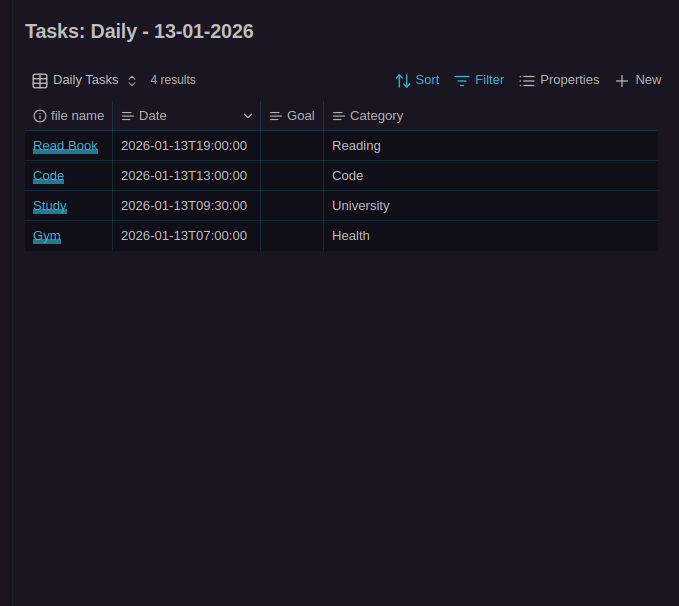
How It Works
The sidebar view:
- Auto-updates when you switch between periodic notes
- Filters automatically based on the current period's date range
- Shows empty state when tasks directory is not configured or current file is not a periodic note
Using Inline Generation
When enabled, Bases views are automatically embedded in newly generated periodic notes. The view appears before PDF content (if enabled).
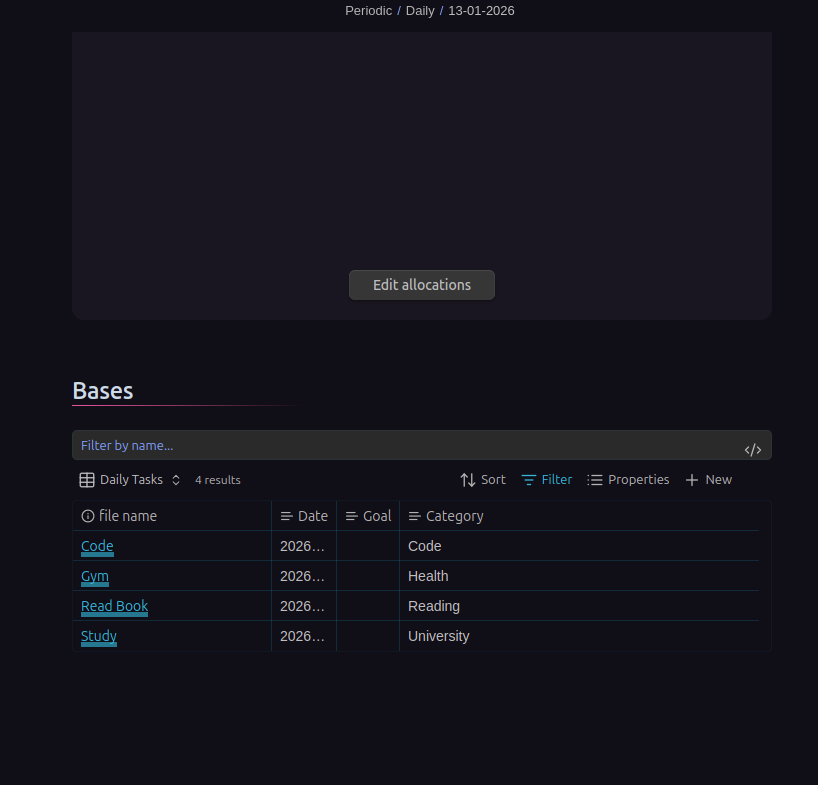
Example generated note:
---
Period Type: daily
Period Start: 2026-01-15T00:00:00
Period End: 2026-01-15T23:59:59
---

## Plan

\`\`\`periodic-planner
work: 8h
\`\`\`

## Bases

\`\`\`base
views:

- type: table
  name: Daily Tasks
  order: - file.name - Date
  filters:
  and: - file.inFolder("Tasks") - note["Date"] > "2026-01-15" - note["Date"] < "2026-01-16"
  sort: - property: Date
  direction: DESC
  \`\`\`
Related Features
- Period Children - View child periods (e.g., weeks in a month)
- Navigation - Commands for moving between periods
- Note Interconnection - How periodic notes link together
Next: Learn about Integrations for ActivityWatch and Templater plugins.