Integrations
Periodix-Planner integrates with third-party tools to enhance your periodic planning workflow.
Templater
Use Templater templates to create customized periodic notes.
Setup
- Install and enable the Templater plugin
- Create template files for the period types you want to customize
- In Settings → Periodix-Planner → Integrations → Templater:
- Toggle Enable Templater on
- Enter template paths for the period types you want to customize
- Leave paths empty for period types you don't want to template
Configuration
| Setting | Description |
|---|---|
| Enable Templater | Turn integration on/off |
| Daily/Weekly/Monthly/Quarterly/Yearly note template | Path to template file (e.g., Templates/Daily.md) |
How It Works
When creating a new periodic note:
- If a template path is configured, Periodix-Planner uses Templater to process it
- After template processing, required frontmatter is automatically added
- If no template is configured, notes are created with default content
- Existing notes are never overwritten
Notes
- Periodix-Planner automatically adds period-specific frontmatter - don't include these in your templates
- Templates are optional - configure only the period types you want to customize
- See Templater documentation for template syntax
ActivityWatch
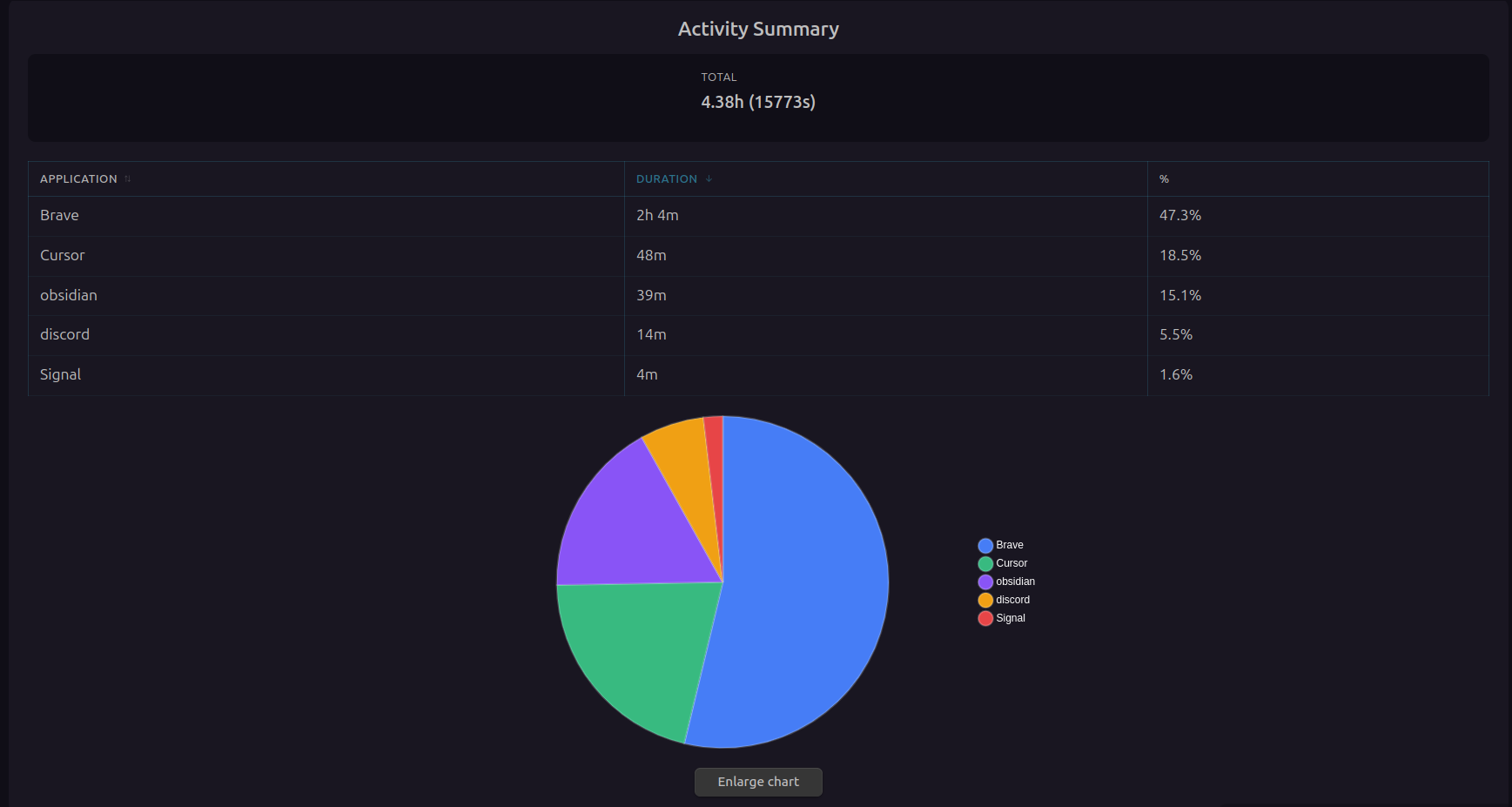
Track and visualize your computer usage automatically in daily notes with interactive charts and detailed breakdowns.
Overview
ActivityWatch is a free, open-source, privacy-focused time tracker that runs locally on your computer. Periodix-Planner automatically fetches your daily activity data and renders it as interactive visualizations in past daily notes.
Features
- Interactive Visualizations: Pie charts and sortable tables show your app usage
- Automatic Injection: Activity data is automatically added to past daily notes during indexing
- Code Fence Rendering: Data stored in JSON format, rendered as beautiful charts
- Enlarge View: Click to see full-screen pie chart visualization
- Smart Filtering: Only tracks active time (excludes AFK periods)
- Sortable Table: Click headers to sort by application name or duration
- Privacy-First: All data stays local on your machine
Setup
-
Install ActivityWatch
- Download from activitywatch.net
- Make sure you are running aw-server-rust (not the legacy Python
aw-server) — this is required for the API to work correctly - Verify the server is running at
http://localhost:5600
-
Enable in Periodix-Planner
- Go to Settings → Periodix-Planner → Integrations → ActivityWatch
- Toggle Enable ActivityWatch on
- Configure the API URL (default:
http://localhost:5600) - Customize the heading (default:
## ActivityWatch) - Customize the code fence name if desired (default:
periodic-planner-activity-watch)
-
Process Existing Notes (Optional)
- Click Process now to add ActivityWatch data to all past daily notes
- Or wait for automatic processing as notes are indexed
How It Works
Automatic Injection: When enabled, the plugin automatically adds ActivityWatch code blocks to past daily notes during indexing. The data is stored in JSON format and rendered as interactive visualizations.
Bulk Processing: Use the "Process now" button in settings to retroactively process all past daily notes at once.
Smart Detection: Won't duplicate data - checks for the ActivityWatch heading before adding content.
Code Fence Format: Data is stored as structured JSON in code blocks for easy parsing and rendering:
## ActivityWatch

```periodic-planner-activity-watch
{
  "totalActiveTime": 16528,
  "apps": [
    { "name": "Brave", "duration": 13779 },
    { "name": "Cursor", "duration": 1709 },
    { "name": "obsidian", "duration": 778 }
  ]
}
```
This renders as an interactive block with:
- Header: Total active time summary
- Sortable Table: Application | Duration | Percentage
- Click column headers to sort by name or duration
- Duration shown in hours and minutes (e.g., "3h 49m")
- Percentage relative to total active time
- Pie Chart: Color-coded visualization of app distribution
- Enlarge Button: Open full-screen chart view
Configuration
| Setting | Description | Default |
|---|---|---|
| Enable ActivityWatch | Turn integration on/off | false |
| API URL | ActivityWatch server address | http://localhost:5600 |
| Heading | Heading text for ActivityWatch sections | ## ActivityWatch |
| Code fence name | Code block language identifier | periodic-planner-activity-watch |
Requirements
- Desktop Only: ActivityWatch integration only works with desktop Obsidian (not mobile)
- aw-server-rust: Requires the Rust version of the ActivityWatch server (
aw-server-rust). The legacy Pythonaw-serveris not supported. Recent ActivityWatch releases bundleaw-server-rustby default - Past Dates Only: Data is only added to past daily notes (not today or future dates)
Troubleshooting
Data not appearing?
- Make sure you are running aw-server-rust, not the legacy Python
aw-server. The Python server uses a different API format that is not compatible with this integration. If you installed ActivityWatch recently, you likely already haveaw-server-rust— but if you upgraded from an older version, you may still be running the Python server - Verify ActivityWatch is running and accessible at the configured API URL
- Check that you have ActivityWatch watchers enabled (window tracker and AFK tracker)
- Ensure the daily note is from a past date (not today or future)
- Use the "Process now" button to manually trigger processing
Connection errors?
- Confirm ActivityWatch server is running (
http://localhost:5600should load in browser) - Check firewall settings aren't blocking local connections
- Verify the API URL in settings matches your ActivityWatch configuration
Privacy & Security
- Local Only: ActivityWatch data never leaves your machine
- No Cloud: All processing happens locally between Obsidian and ActivityWatch
- No Authentication: ActivityWatch relies on localhost-only access for security
- Your Data: You have complete control over what data is tracked and stored