Allocation Editor
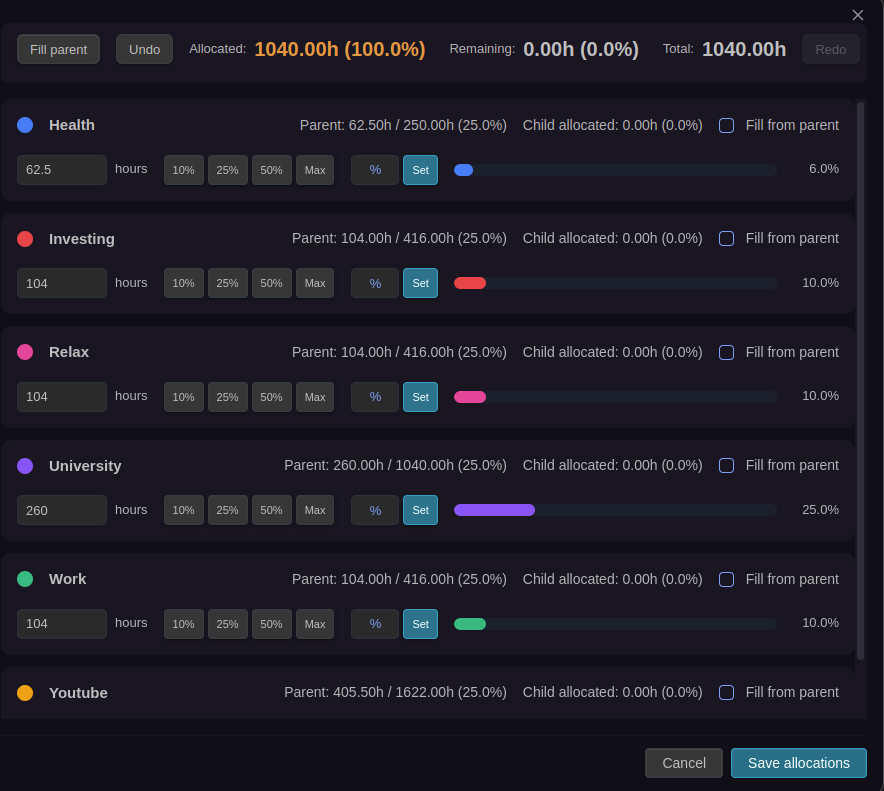
The Allocation Editor is an interactive modal that provides powerful tools for editing time allocations with visual feedback and intuitive controls.
🎯 Overview
The Allocation Editor allows you to:
- Set hours for each category
- Create new categories on-the-fly with the "+ Create new category" button
- Use quick-fill buttons for common percentages
- Drag percentage bars to adjust allocations
- Enter custom percentages
- See parent budget warnings
- Track remaining hours
- Undo/redo changes
🚀 Opening the Editor
From Time Budget Block
- Click the Edit allocations button
- The Allocation Editor modal opens
📊 Editor Interface
Summary Section
At the top of the editor, you'll see:
- Hide unused checkbox: Toggle visibility of categories without parent budget allocation (non-yearly periods only). Default state is configurable in settings.
- Fill parent button: Inherit allocations from parent period (only shown if parent exists)
- Undo button: Revert recent changes
- Allocated: Total hours allocated across all categories
- Remaining: Hours still available
- Total: Total hours available in the period
- Redo button: Restore undone changes
- Status indicators: Color-coded (green/yellow/red)
At the bottom left:
- + Create new category button: Add a new category without leaving the editor
At the bottom right:
- Cancel button: Discard all changes and close
- Save allocations button: Save changes to your note
Category List
Each category displays:
- Color dot: Visual category identifier
- Category name: The name you defined
- Input field: Direct hour entry
- Quick-fill buttons: 10%, 25%, 50%, Max
- Custom percentage input: Enter exact percentage
- Percentage bar: Visual representation (draggable)
- Percentage label: Shows current allocation percentage
- Parent budget info: Shows parent allocation status (if applicable)
- Child budget info: Shows child allocations (if applicable)
🎮 Interaction Methods
1. Creating New Categories
Add categories without leaving the editor:
- Click the + Create new category button at the bottom left
- An input field appears at the bottom, just above the action buttons
- Type the category name (e.g.,
Exercise) - Click Add or press Enter
- The new category appears in the list with 0 hours
- The category is assigned a default color from the palette
- When you save allocations, the category is automatically discovered and tracked
Features:
- Create categories instantly without switching to settings
- New categories start with 0 hours
- Automatically scrolls to and focuses the new category
- Shows a notice if the category already exists
- Click Cancel or press Escape to cancel category creation
- Supports undo/redo for category creation
2. Direct Input
Type hours directly in the input field:
- Click the input field
- Type the number of hours (e.g.,
8.5or8.125) - Press Enter or click away
- Allocation updates automatically
Features:
- Supports up to 3 decimal places (e.g.,
8.125) - Auto-formats on blur to show maximum 3 decimals
- Auto-updates on input
- Validates against total available hours
3. Quick-Fill Buttons
Click preset percentage buttons:
- 10% - Allocates 10% of available hours
- 25% - Allocates 25% of available hours
- 50% - Allocates 50% of available hours
- Max - Allocates maximum available hours
How it works:
- Calculates from total available hours
- Respects "Fill from parent" setting
- Updates input field and percentage bar
4. Drag Percentage Bar
Drag the percentage bar to adjust allocation:
- Click and hold on the percentage bar
- Drag left or right
- Release to set the value
- Hours update automatically
Features:
- Smooth dragging experience
- Visual feedback during drag
- Works on desktop and touch devices
5. Custom Percentage Input
Enter exact percentages:
- Type percentage in the custom input field (e.g.,
35) - Click Set or press Enter
- Allocation updates to that percentage
Calculation:
- Based on total available hours
- Respects "Fill from parent" setting
- Rounds to nearest 0.1 hours
🔄 Inherit from Parent Period
Hide Unused Categories
Click the "Hide unused" checkbox at the top to toggle visibility of categories that have no budget allocated from the parent period. This helps reduce clutter when working with child periods.
When to use:
- Working on daily/weekly/monthly/quarterly notes (not yearly)
- Want to focus only on categories with parent budget allocation
- Need a cleaner view without irrelevant categories
How it works:
- Shows categories that have either current allocation OR parent budget allocation
- Default behavior is configurable in Settings → Time budget
- Yearly notes always show all categories
Fill Parent Button
Click the "Fill parent" button (shown at the top when a parent period exists) to instantly fill all categories based on the parent period's percentage distribution.
Learn more: Auto-Inherit Parent Percentages
Per-Category Fill from Parent Checkbox
Each category has a "Fill from parent" checkbox that changes how quick-fill buttons calculate percentages - they'll use the parent budget instead of the child's total available hours.
Learn more: Fill from Parent
⚠️ Budget Warnings
Parent Budget Warnings
When you exceed a parent budget:
- ⚠️ Warning icon appears
- Text shows:
⚠️ Parent: Xh / Yh (Z%) - Category item highlighted in red
- Percentage bar shows over-budget status
↶ Undo/Redo
Using Buttons
- Click Undo to revert changes
- Click Redo to restore changes
- Buttons are disabled when no history available
Keyboard Shortcuts
- Ctrl/Cmd + Z - Undo
- Ctrl/Cmd + Shift + Z - Redo
Features:
- Tracks all allocation changes
- Maintains separate undo/redo stacks
- Preserves input focus during undo/redo
💾 Saving Changes
Save Allocations
- Click Save allocations button
- Allocations are written to note frontmatter
- Modal closes
- Time budget block updates
Cancel
- Click Cancel button
- All changes are discarded
- Modal closes
- Original allocations remain unchanged
🎨 Visual Feedback
Percentage Bars
- Color matches category color
- Width represents allocation percentage
- Draggable for easy adjustment
- Updates in real-time
Summary Indicators
- Color-coded status classes
- Percentage display
- Clear visual hierarchy
Related: Learn about Time Budgeting and Visual Statistics.