Virtual Events
Show recurring events beyond your generation horizon without creating physical files.
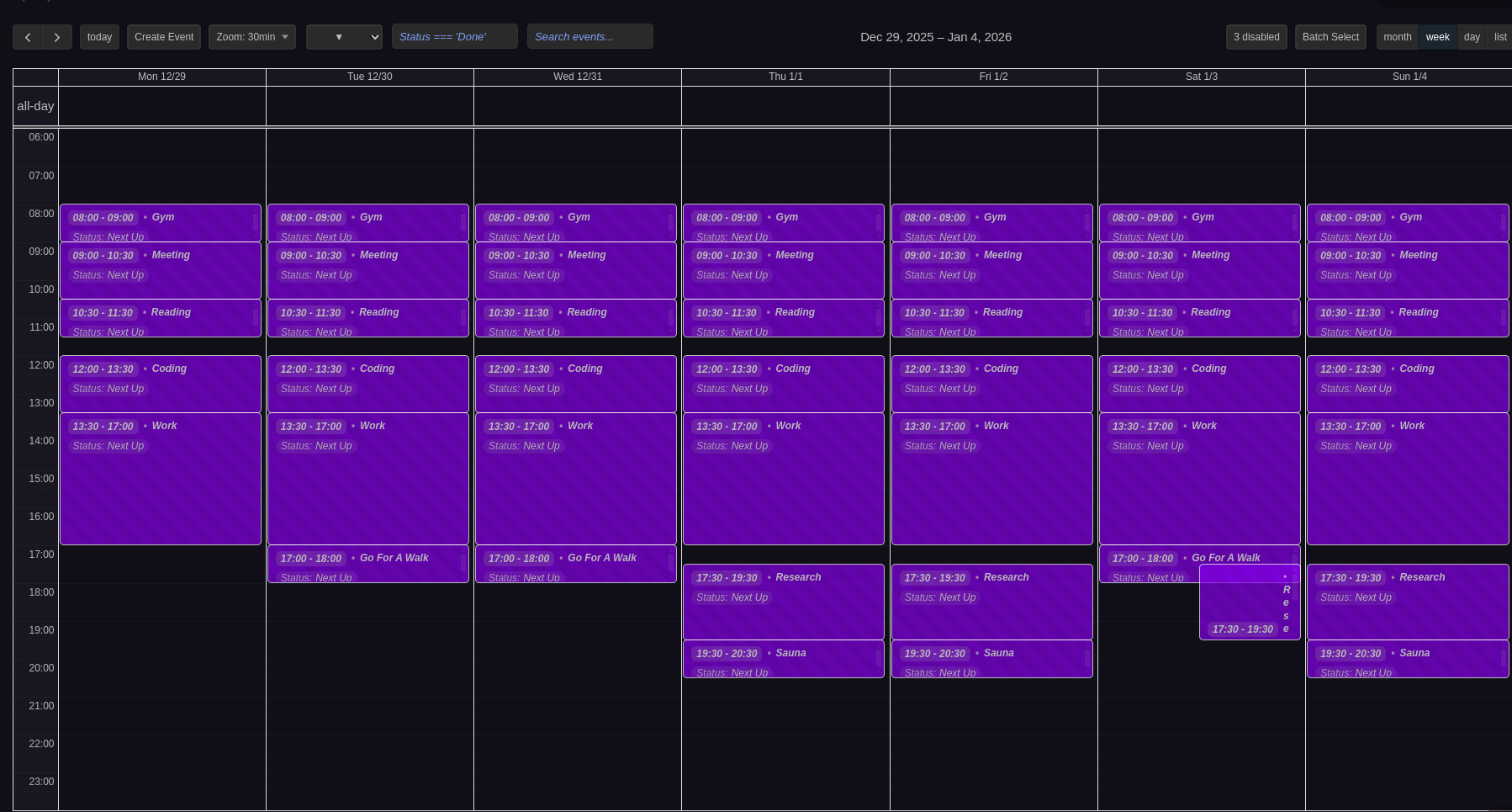
Calendar view showing both physical events (solid) and virtual events (far future recurring instances)
How Virtual Events Work
Virtual events are read-only calendar entries that extend your recurring series beyond the physical notes you've generated. They appear in the calendar view but don't create actual files in your vault.
Physical vs Virtual Events
Physical Events (up to "Future instances count" setting):
- Actual
.mdfiles created in your vault - Inherit complete structure from configuration node (frontmatter + content)
- Editable and available for batch operations
- Searchable within Obsidian
- Take up storage space
Virtual Events (beyond generation horizon):
- Calendar-only display items showing recurring pattern
- Visual continuation of your recurring schedule into the future
- Read-only (cannot be edited or selected for batch operations)
- Don't create physical files, have no properties, or consume storage
Benefits
Vault Management
- Keep your vault lean - avoid cluttering with hundreds of future notes
- Reduce search noise - only current/near-future events appear in searches
- Faster vault performance - fewer files to index and sync
Planning Visibility
- See long-term patterns - visualize your recurring schedule months/years ahead
- Spot scheduling conflicts - identify overlapping events even far in the future
- Plan around recurring commitments - understand your availability patterns
Configuration
The physical/virtual boundary is controlled by the "Future instances count" setting. See Recurring Events - Generation Control for details on counting logic, ranges, and per-event overrides.
Converting Virtual to Physical: Increase "Future instances count" in settings to generate physical files for previously virtual events.
Example
Weekly team meetings with "Future instances count" = 2 creates 6 physical files (2 weeks × 3 days). Beyond that, virtual events display the pattern indefinitely without creating files.
Navigation
Right-click any virtual event → "Go to source" to navigate to the source event in the calendar (switches to week view and highlights for 5 seconds).
Related
- Recurring Events - Complete recurring event documentation
- Configuration - Future instances count settings