Integrations
Sync with external calendars or exchange events using standard calendar formats.
Overview
Prisma Calendar offers two integration methods:
- CalDAV Sync - Automatic read-only synchronization from CalDAV servers (Fastmail, Nextcloud, iCloud) to Obsidian
- ICS Import/Export - Manual exchange of event files with any calendar application
ICS Format: Prisma Calendar stores all event times internally in UTC. When exporting or importing, you select a timezone for conversion. This ensures events display correctly in any calendar application.
Compatible with: Google Calendar, Apple Calendar (iCal), Microsoft Outlook, Nextcloud Calendar, Thunderbird, and any application supporting ICS/iCalendar format.
Exporting Events
How to Export
- Open command palette (
Ctrl/Cmd + P) - Run "Prisma Calendar: Export calendar as ICS"
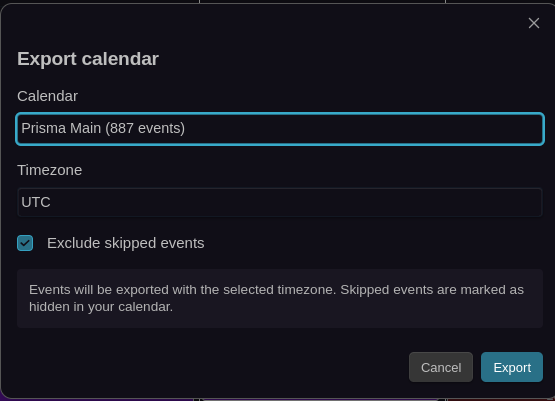
- Select export options:
- Calendar: Choose which calendar to export
- Timezone: Select timezone for exported events
- Exclude skipped events: Toggle to include/exclude skipped events
Exported Data
Each event includes:
| Field | Description |
|---|---|
| UID | Unique identifier for idempotent imports |
| SUMMARY | Event title without Zettel ID |
| DTSTART/DTEND | Event timing |
| DESCRIPTION | Full markdown content |
| CATEGORIES | Event categories |
| VALARM | Notification reminders |
| URL | Obsidian URI link back to note |
Custom Properties: Prisma-specific metadata (X-PRISMA-FILE, X-PRISMA-VAULT, X-PRISMA-EVENT-ID) enables linking back to original notes and maintaining idempotency on re-import.
Output Location: Exported files saved to Prisma-Exports/ folder in your vault.
Importing Events
How to Import
- Open command palette (
Ctrl/Cmd + P) - Run "Prisma Calendar: Import ICS file"
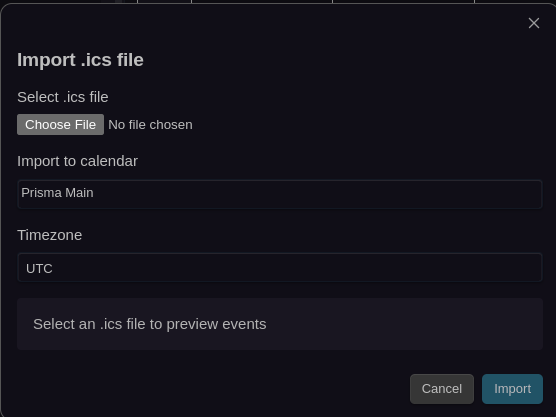
- Select the ICS file to import
- Choose destination calendar
- Select timezone for conversion
- Click "Import" to create notes
Import Process
For each imported event, Prisma Calendar:
- Creates a new markdown note in the calendar's folder
- Generates a Zettel ID timestamp for the filename
- Populates frontmatter: Start/End dates, All-day flag, Categories, Notification settings (if VALARM present)
- Adds event description as note content
Timezone Handling
Internal Storage: All events stored in UTC (2025-01-15T14:00:00Z)
Export Conversion: When exporting with timezone Europe/Prague (UTC+1), event displays as 15:00-16:00 in Prague time. ICS file includes X-WR-TIMEZONE:Europe/Prague
Import Conversion: Times converted from source timezone to UTC, stored in frontmatter as UTC timestamps
CalDAV Integration
Overview
CalDAV integration enables read-only synchronization from external CalDAV servers to Prisma Calendar. Connect your Fastmail, Nextcloud, iCloud, or any CalDAV-compatible calendar to automatically import events into Obsidian.
Key Benefits:
- Automatic one-way sync (server → Obsidian)
- Create Obsidian notes for external events
- Incremental sync using ETags for efficiency
- No manual import/export required
Important: CalDAV sync is currently read-only. Events created or modified in Obsidian are not synced back to the CalDAV server.
Setting Up CalDAV
CalDAV credentials are stored in PLAINTEXT in .obsidian/plugins/prisma-calendar/data.json
- ⚠️ Passwords are NOT encrypted
- ⚠️ Anyone with access to your vault can read credentials
- ⚠️ Synced vaults (iCloud, Dropbox, Git) expose credentials
Mandatory Security Practices:
- ✅ ALWAYS use app-specific passwords - never your main account password
- ✅ Use a dedicated CalDAV account with limited permissions
- ✅ Enable filesystem encryption (BitLocker, FileVault, LUKS)
- ✅ Be cautious when syncing vault to cloud services
Adding an Account
- Open Prisma Calendar Settings → Integrations → CalDAV
- Click "Add CalDAV account"
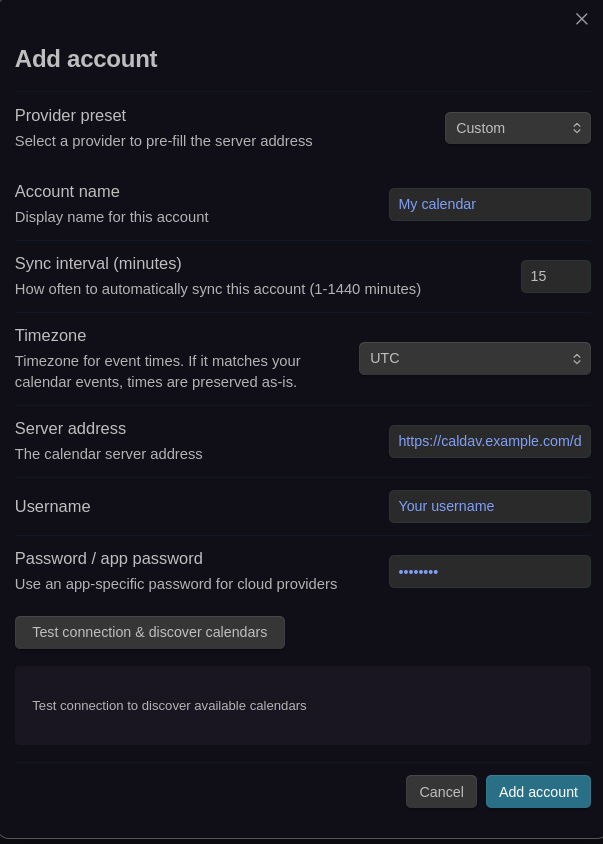
- Configure account details:
- Account name: Display name (e.g., "Work Calendar")
- Server URL: CalDAV server endpoint
- Auth method: Basic or OAuth 2.0
- Username: Your account username
- Password: ⚠️ STORED IN PLAINTEXT - Use app-specific password
- Timezone: Timezone for event conversion
- Click "Test connection" to verify credentials
- Click "Save"
Selecting Calendars
After adding an account:
- Click "Select calendars" for the account
- Browse available calendars from the server
- Check calendars you want to sync
- Each account can sync multiple calendars to a single Prisma calendar
Sync Configuration
Configure automatic synchronization behavior:
| Setting | Default | Description |
|---|---|---|
| Allow auto-sync | true | Enable periodic background syncing |
| Sync on startup | true | Sync when Obsidian starts |
| Sync interval | 15 minutes | How often to sync (1-1440 minutes) |
| Show sync notifications | true | Display sync status messages |
Manual Sync: Use "Sync now" button in CalDAV settings to trigger immediate synchronization.
How CalDAV Sync Works
Initial Sync
- Fetches all events from selected calendars
- For each event:
- Creates markdown note in calendar's folder
- Generates Zettel ID for conflict-free filename
- Populates frontmatter with event data
- Adds CalDAV metadata for tracking
Incremental Updates
On subsequent syncs:
- ETag comparison: Check if server event changed
- If unchanged: Skip processing (efficient)
- If changed: Update frontmatter, rename file if title changed (preserve Zettel ID), update timestamps
Event Metadata
Synced events include CalDAV tracking in frontmatter:
accountId: Which CalDAV account manages this eventcalendarHref: Source calendar URLobjectHref: Specific event resource URLetag: Version tag for change detectionuid: iCalendar unique identifierlastModified: When event was last changed on serverlastSyncedAt: When Prisma last synced this event
Visual Integration
CalDAV-synced events display with a custom color:
- Open Settings → Integrations → CalDAV
- Set "Integration event color" (default: purple
#8b5cf6) - Calendar immediately updates all CalDAV events
Color Priority: CalDAV integration color overrides other color rules.
Title Changes and File Renaming
When an event title changes on the CalDAV server:
- Prisma detects title change via ETag
- Renames file with preserved Zettel ID
- Updates frontmatter automatically
Example: Team Meeting - 20250115140000.md → Weekly Standup - 20250115140000.md
Related Features
- Event Skipping - Hide events without deleting
- Multiple Calendars - Manage separate calendars
- Notifications - Configure event reminders