Time Tracker
Built-in stopwatch in Create/Edit Event modal for precise time tracking with automatic break tracking.
Quick Start
- Open Create Event modal
- Expand ▶ Time tracker header
- Click ▶ start (fills Start Date, starts tracking)
- Work on your task - watch the Session timer at the bottom track your current work session
- Click ⏸ break when you need a break - the Current Break timer appears at the bottom
- Click ▶ resume when ready to continue - the Session timer restarts from zero
- Click ⏹ stop when done (fills End Date and Break field with accumulated break time)
- Save event
Tip: Use the Session timer to track individual work sessions, and the Total Break timer to see cumulative break time across your entire tracking session.
Interface
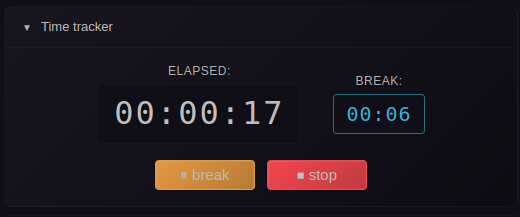
Collapsed (default): Click ▶ Time tracker header to expand
Controls:
- ▶ start: Begin tracking, fills Start Date. Starts both the total timer and session timer.
- ⏸ break: Pause productive time and start tracking break time. The total timer continues, but the session timer pauses and the current break timer starts.
- ▶ resume: End break and resume productive time. The current break time is added to total break time, and the session timer restarts from zero.
- ⏹ stop: End session, fills End Date and Break field. Stops all timers and saves the accumulated break time.
- − minimize: Save modal state, continue tracking internally. Restore via "Restore minimized event modal" command
Minimize & Auto-Save
Manual Minimize: Click − to save modal state (pre-configure events for later)
Auto-Save: When timer is running, closing modal (ESC, click outside, Cancel) automatically saves state. Timer continues in background.
Restore: Ctrl/Cmd+P → "Restore minimized event modal"
Notes: Only one modal at a time. State lost if Obsidian closed.
Displays
The stopwatch displays multiple timers to give you complete visibility into your time tracking:
Top Row Timers
Total (HH:MM:SS): Total elapsed time since you started the stopwatch, including all breaks. This represents the complete duration from when you clicked "start" until now.
Total Break (HH:MM:SS): Accumulated break time across all breaks taken during the session. This includes all past breaks plus the current break (if paused). Saved to the Break field in minutes (with decimal precision) when you stop the timer.
Bottom Timer (Mid Timer)
Session (HH:MM:SS): Shown when the stopwatch is running. Displays the current session time - the time elapsed since you last clicked "start" or "resume". This timer resets each time you resume from a break, giving you visibility into how long your current work session has been.
Current Break (HH:MM:SS): Shown when the stopwatch is paused (in break mode). Displays the duration of the current active break - how long you've been on break since clicking "break". This helps you track individual break durations.
Note: The mid timer automatically switches between "Session" and "Current Break" based on whether you're actively working or on break. Only one is visible at a time.
Integration
Statistics: Break time subtracted from duration for accurate tracking
Duration Field: Updates automatically on start/stop
Event Presets: Works alongside presets for template + precision timing
Configuration
Enable/Disable: Settings → [Calendar] → General → "Show time tracker in event modal"
Break Property: Settings → [Calendar] → Properties → "Break property" (default: Break)
Timed Events Only: Only visible when "All day" is unchecked
Related Features
- Statistics - Break time subtracted from duration
- Event Creation - Other creation features
- Event Presets - Pre-fill templates