Categories
Organize and visualize your events using categories. Categories provide a powerful way to group events, apply colors, and analyze how you spend your time.
Overview
Categories allow you to:
- Group related events - Organize events by project, context, or any classification system
- Apply visual colors - Each category gets its own color for easy identification on the calendar
- Track time distribution - See how much time you spend on different categories with built-in statistics
- Filter and search - Quickly find all events in a specific category
Setting Up Categories
Category Property Configuration
First, configure the category property in your calendar settings:
- Go to Settings → [Your Calendar] → Properties
- Set the Category property field (default:
Category) - This property will be used to read and write categories in your event frontmatter
Category Format
Categories can be specified in your event frontmatter in two formats:
# Single category
Category: Work

# Multiple categories (YAML array)
Category:
  - Work
  - Meeting
  - Important
Both formats are supported throughout the plugin. When you assign categories using the UI, they're automatically saved in the appropriate format.
Assigning Categories
You can assign categories to events in multiple ways:
1. Individual Events (Manual)
Edit the event note directly and add the category property:
---
Category: Work
Start: 2025-01-15T09:00:00
End: 2025-01-15T10:00:00
---
2. Event Context Menu
Click on any event in the calendar and select "Assign Categories" from the context menu. This opens the category assignment modal with the event's current categories pre-selected.
3. Event Modal (Create/Edit)
When creating or editing an event, use the "Assign Categories" button in the modal. Categories are displayed with their configured colors, and you can modify them before saving the event.
4. Batch Assignment
Select multiple events in batch mode and use the "Categories" button to assign categories to all selected events at once.
📖 See Batch Operations for detailed batch assignment instructions.
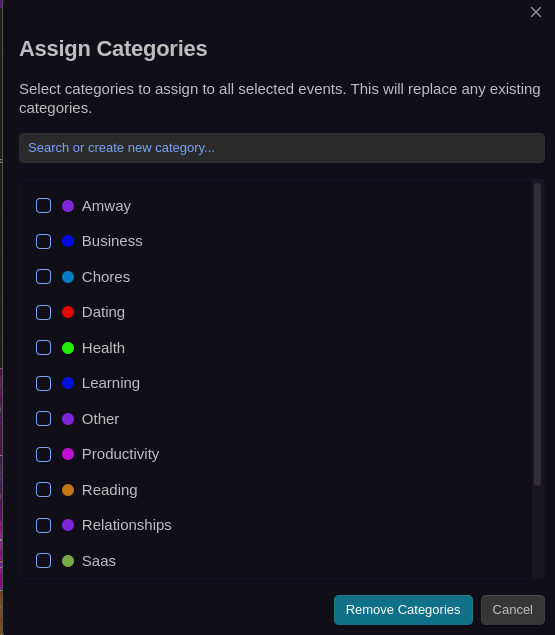
Category Assignment Modal
All category assignment interfaces share the same powerful modal:
- Multi-select with search - Filter and select multiple categories simultaneously
- Pre-selected categories - Current event categories are automatically checked
- Create new categories - Type a non-existent category name and click "Create New" to add it on the fly with the default event color
- Color indicators - Each category displays its configured color from Settings → Categories
- Override behavior - Assigned categories completely replace existing categories (doesn't merge)
- Remove all categories - Uncheck all categories and click "Remove Categories" to clear categories
- Full undo support - Restores previous category state (batch operations only)
Managing Category Colors
Visual Category Management
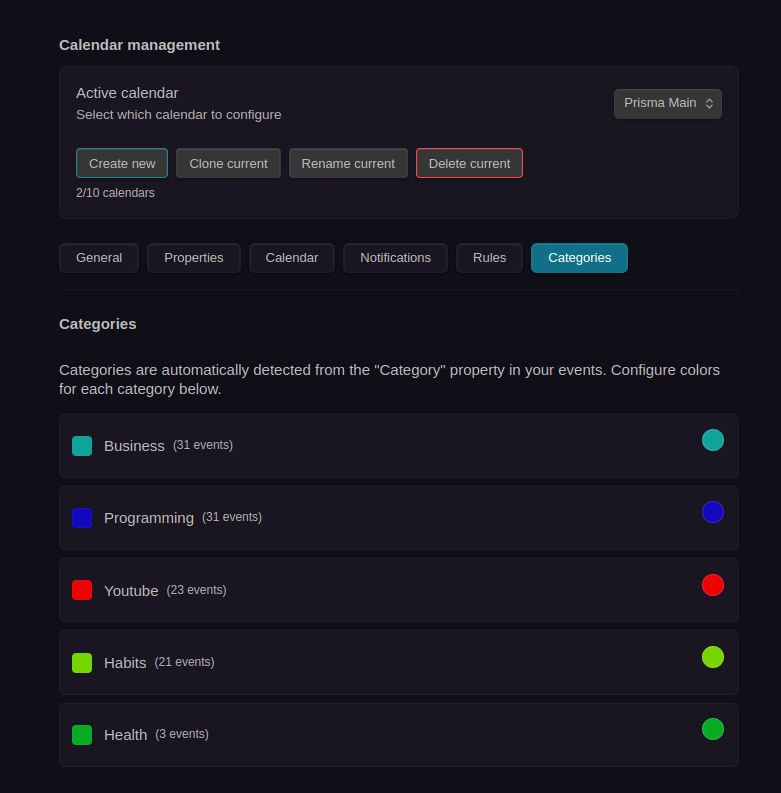
The Categories Settings page (Settings → Categories) provides a convenient interface for managing category colors:
- Automatic Detection - All categories from your events are automatically detected and listed
- Event Counts - See how many events use each category
- Color Pickers - Click the color swatch next to any category to change its color
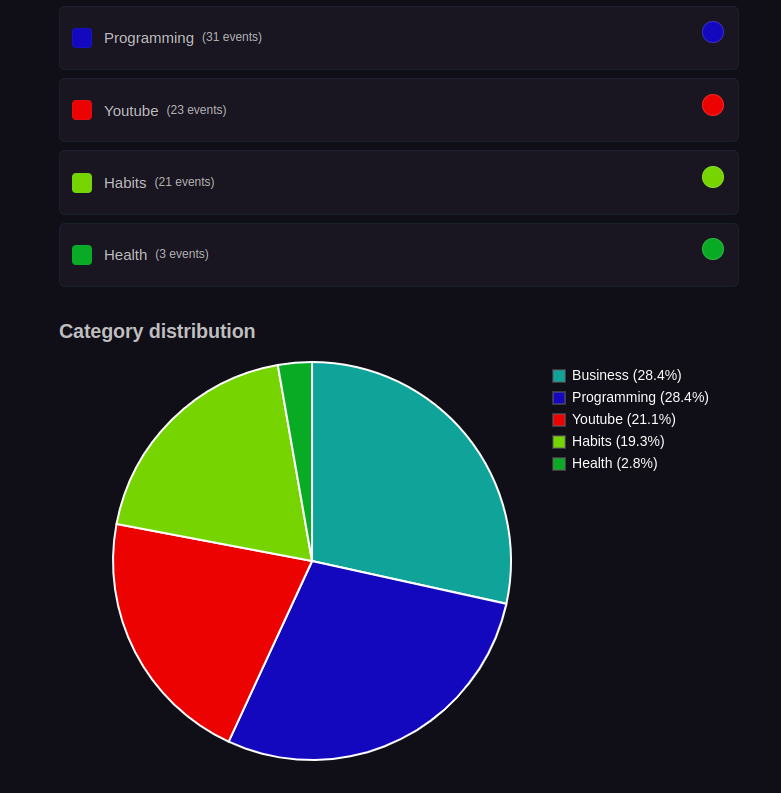
- Pie Chart Visualization - View category distribution with an interactive pie chart
- Real-time Updates - Changes are reflected immediately on the calendar
How Category Colors Work
Behind the scenes, category colors are stored as color rules using expressions like Category.includes('Work'). This means:
- Category colors integrate seamlessly with the color rules system
- You can manually create category color rules if needed
- Category colors follow the same priority system as other color rules
📖 See Color Rules for more details on the underlying color system.
Viewing Events by Category
Click on any category to open a Bases table view showing all events with that category. This works in two places:
1. Event Modal
Click any category badge in the event creation/edit modal to view all events with that category.
2. Settings → Categories
Click any category name in the categories settings page to view all events with that category.
Category View Features
The category view displays:
- Filtered Events - All events in that category from your events folder
- Smart Columns - File name, start/end dates, date (for all-day events), and status
- Recent First - Events sorted by modification time (most recent first)
- Full Bases Integration - Complete Bases functionality for filtering, sorting, and viewing event details
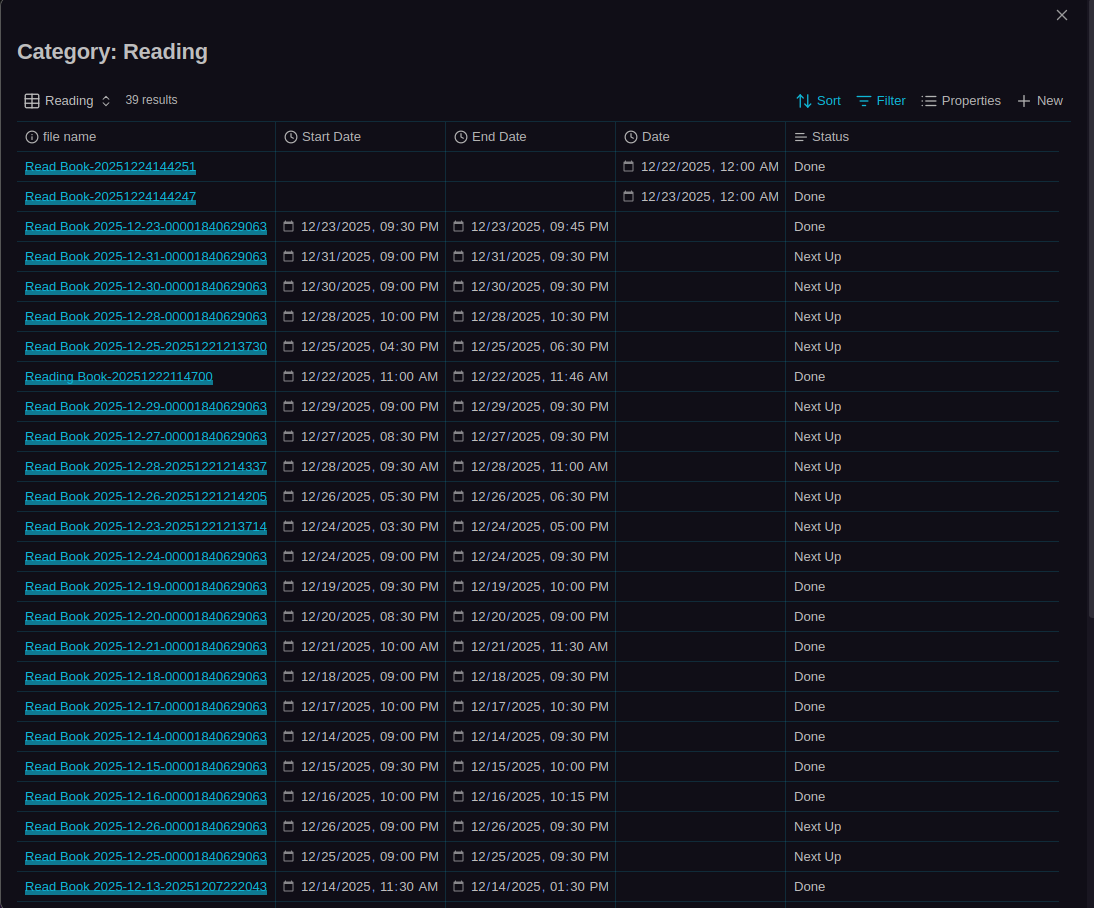
This provides a quick way to see all events in a specific category without manually filtering the calendar view. You can:
- Click on any event to open its note
- Sort by any column
- Use Bases features to further filter or analyze the events
- See all event properties in a structured table format
Category Statistics
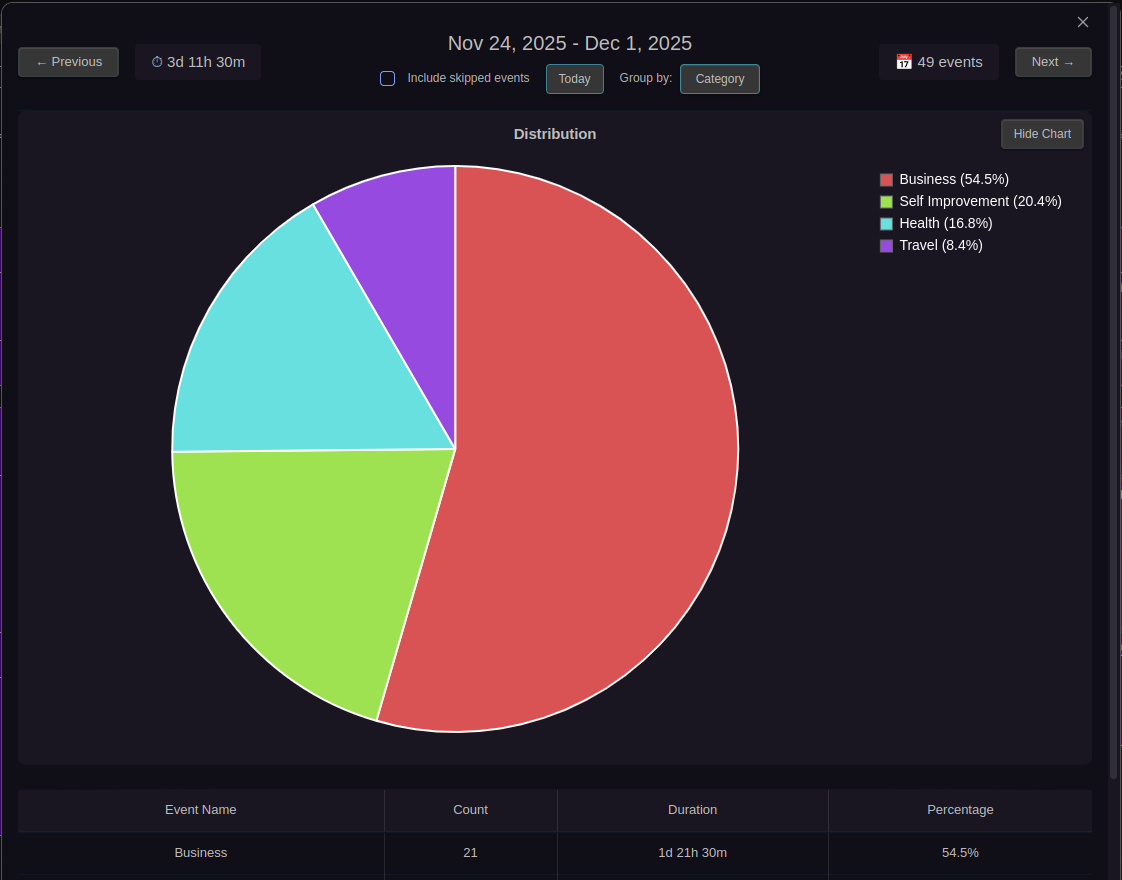
Categories integrate with the statistics system to show time distribution:
- Go to Statistics in the calendar toolbar
- Switch to Category aggregation mode
- View time spent on each category with pie charts and detailed tables
Categories with the Break property configured will have break time subtracted from the total duration in statistics.
📖 See Statistics for more details on time tracking and analysis.
Related Features
- Color Rules - Understanding the color system that powers category colors
- Batch Operations - Assigning categories to multiple events at once
- Statistics - Analyzing time spent on different categories
- Filtering - Filtering events by category expressions