Filtering
Prisma Calendar provides multiple powerful ways to filter events, from simple text search to advanced property-based expressions. These filtering options work together to help you focus on exactly what matters.
Three Ways to Filter
1. Search Bar (Simple Text Filter)
The Search Bar in the calendar toolbar lets you quickly filter events by title:
- Location: Calendar toolbar (left side)
- Usage: Type any text to show only events whose titles contain that text
- Features:
- Case-insensitive search
- Press Enter or blur the input to apply immediately
- Hotkey: Use the
Focus searchcommand to jump directly to the search input
Example:
Type "meeting" → Shows only events with "meeting" in the title
2. Expression Filter (Advanced Property Filter)
The Expression Filter enables powerful, property-based filtering using JavaScript expressions:
- Location: Calendar toolbar (next to search bar)
- Usage: Enter JavaScript expressions that reference frontmatter properties
- Features:
- Access any frontmatter property by name (e.g.,
Status,Priority) - Use full JavaScript operators (
===,!==,&&,||,!) - Supports array methods (
includes(),length, etc.) - Evaluates against all frontmatter properties
- Access any frontmatter property by name (e.g.,
- Hotkey: Use the
Focus expression filtercommand to jump to the filter input
Examples:
// Show only high-priority items
Priority === 'High'

// Show active tasks (not done)
Status !== 'Done'

// Show items with 'urgent' tag
Tags && Tags.includes('urgent')

// Complex: High-priority active work tasks
Project === 'Work' && Priority === 'High' && Status !== 'Done'

// Show tasks due soon or high priority
(Priority === 'High') || (DueDate && new Date(DueDate) < new Date())
3. Filter Presets (Quick Access)
Filter Presets let you save and reuse common filter expressions:
- Location: Dropdown (▼) in calendar toolbar
- Setup: Configure in Settings → Rules → Filter Presets
- Features:
- Save named presets with custom expressions
- One-click application from dropdown
- "Clear" option to reset filters
- Hotkey support via
Open filter preset selectorcommand
Setting Up Presets:
- Go to Settings → Prisma Calendar → Rules → Filter Presets
- Click "Add Preset"
- Enter a name (e.g., "High Priority Tasks")
- Enter the expression (e.g.,
Priority === 'High' && Status !== 'Done') - Access from the ▼ dropdown in the calendar toolbar
Highlight Events Without Categories
The "Highlight events without categories" command temporarily highlights all events missing category assignments, making it easy to identify which events need category assignment.
How to use:
- Command: Open command palette (Ctrl/Cmd+P) and search for "Highlight events without categories"
- Duration: Events are highlighted for 10 seconds
- Visual feedback: Events without categories are visually highlighted in the calendar view
Note: The category property name is configurable in Settings → Properties → "Category property" (default: Category).
Highlight Events With Category
The "Highlight events with category" command opens a modal that lets you select a specific category and temporarily highlights all events assigned to that category. This makes it easy to visually identify events belonging to a particular category across your calendar.
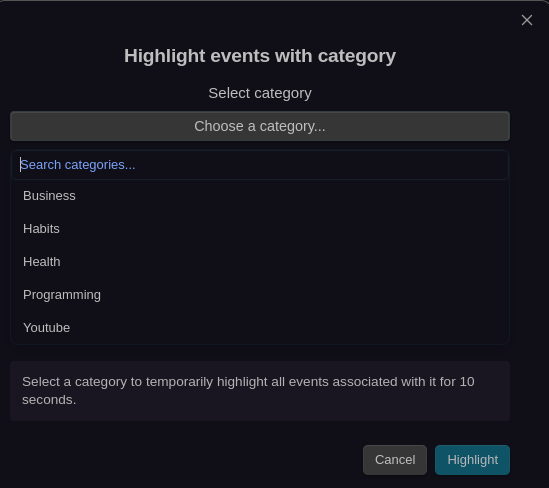
How to use:
- Command: Open command palette (Ctrl/Cmd+P) and search for "Highlight events with category"
- Modal: A dropdown modal appears with all available categories from your events
- Selection: Choose a category from the dropdown and click "Highlight" (or press Enter)
- Duration: Events with the selected category are highlighted for 10 seconds
- Visual feedback: Events with the selected category are visually highlighted in the calendar view
- Auto-close: The modal automatically closes after highlighting
Features:
- Shows all unique categories found in your events
- Displays "No categories found" if no events have categories assigned
- Only one highlight can be active at a time (triggering a new highlight replaces the previous one)
Note: The category property name is configurable in Settings → Properties → "Category property" (default: Category).
How Filters Work Together
All active filters are combined with AND logic. An event must pass all active filters to be displayed:
Visible = (Search Filter) AND (Expression Filter) AND (Settings Filter)
Example:
- Search: "meeting"
- Expression Filter:
Status !== 'Done' - Result: Shows only events with "meeting" in the title AND Status is not "Done"
Settings-Based Filtering
Each calendar also has persistent filter expressions in its settings:
- Reference frontmatter properties directly by name (e.g.,
Status,Priority) - An event is displayed only if the expression evaluates to
true - Use
&&(AND) and||(OR) to combine multiple conditions as needed - These filters are permanent and apply every time the calendar loads
Building Complex Filters with JavaScript Logic
You can create sophisticated filtering logic using standard JavaScript operators. Here are some examples:
Simple Filters
// Show only high-priority items
Priority === 'High'

// Show everything except completed tasks
Status !== 'Done'

// Show items tagged with 'urgent'
Tags && Tags.includes('urgent')
Complex Filters with AND/OR Logic
// High-priority active tasks for Project Phoenix
Project === 'Project Phoenix' && Priority === 'High' && Status !== 'Done'

// Show urgent items OR high-priority work items
(Tags && Tags.includes('urgent')) || (Priority === 'High' && Category === 'Work')

// Show active tasks from multiple projects
(Project === 'Phoenix' || Project === 'Atlas') && Status !== 'Done'

// Complex conditional logic
Status === 'Active' && (Priority === 'High' || (DueDate && new Date(DueDate) < new Date()))
The filter expression is fully flexible - you can combine as many conditions as needed using JavaScript's logical operators.
Viewing Filtered Events
Filtered Event List Modal
When you have active search or expression filters, you might wonder what events are being hidden. The Filtered Event List Modal shows you exactly which events are currently excluded by your active filters.
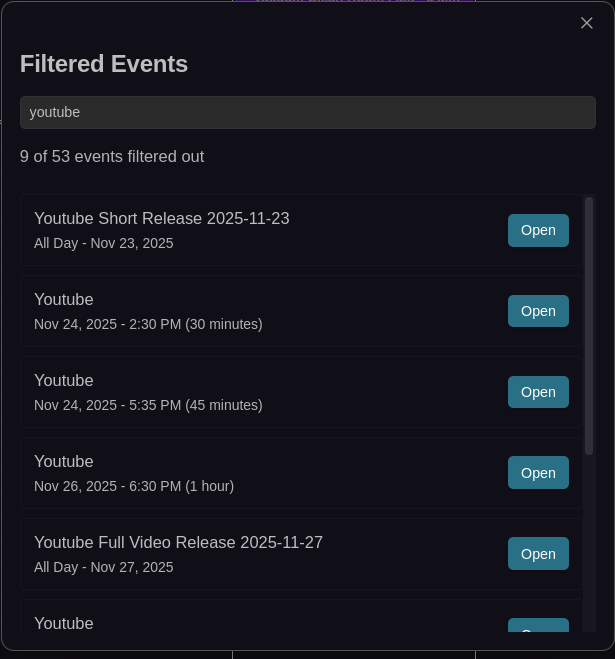
View all events hidden by your active filters with search functionality
- Access: Command palette → "Show filtered events"
- Shows: All events that don't pass current search and expression filters
- Features:
- Search within filtered events by name
- Click any event to open its file
Keyboard Shortcuts
Several filtering commands can be assigned hotkeys for quick access:
Focus search- Jump to the search bar inputFocus expression filter- Jump to the expression filter inputOpen filter preset selector- Open the filter presets dropdownShow filtered events- Open modal showing events hidden by active filtersHighlight events without categories- Highlight events missing category assignmentsHighlight events with category- Open modal to select and highlight events by category
For a complete list of available commands and how to set up hotkeys, see the Hotkeys documentation.
Troubleshooting
Events Not Showing
- Check all active filters: Search, expression, settings, and preset filters all apply
- Clear filters one by one: Identify which filter is excluding your event
- Test expressions: Use the browser console to test filter logic
- Verify property names: Ensure property names match your frontmatter exactly (case-sensitive)
Invalid Expressions
- Check console: Invalid expressions are logged with detailed error messages
- Common issues:
- Missing closing parenthesis:
(Status === 'Done'❌ →(Status === 'Done')✅ - Single equals:
Status = 'Done'❌ →Status === 'Done'✅ - Undefined properties:
Tags.includes('urgent')❌ →Tags && Tags.includes('urgent')✅
- Missing closing parenthesis: