Untracked Events
The Untracked Events Dropdown is an inbox for events that don't have date properties yet.
Overview
Events are considered untracked when they have none of the following properties:
- Start Date
- End Date
- Date
These events won't appear on the calendar but are accessible from the dropdown for easy scheduling.
Filtering Untracked Events
Filter which untracked events appear using JavaScript expressions in Settings → Rules & Filters → Untracked Event Filtering.
- Filters apply when files are indexed
- Events must pass all filter expressions to appear
- Works identically to calendar event filtering
- Changes apply immediately
See Filtering for expression syntax and examples.
Features
View Untracked Events
The dropdown appears in the calendar toolbar as an "Untracked" button. Click to see all untracked events.
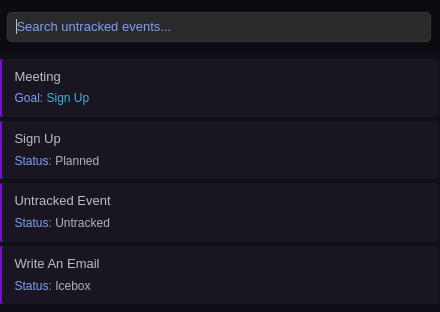
Each event shows:
- Event title (ZettelID stripped for clean display)
- Configured display properties (frontmatter fields)
- Color coding based on your color rules
- Search bar to filter by title
Start Tracking
Hover over any untracked event to reveal a ▶ button on the right side. Clicking it converts the untracked event into a full timed event and starts the time tracker. Any currently running time tracker session is automatically stopped first.
Requires the time tracker to be enabled in Settings → Time Tracker → Enable Time Tracker.
Create from Dropdown
A "+ Create untracked event" button at the top of the dropdown opens the create modal — identical to the "Create new untracked event" command.
Drag & Drop — From Dropdown to Calendar
Drag any untracked event from the dropdown onto the calendar to assign it a date:
Timed events:
- Drag event from dropdown
- Drop on a time slot in week/day view
- Start time is set to the drop time
- End time is calculated from default duration (configurable in settings)
All-day events:
- Drag event from dropdown
- Drop on a day in month view
- Date property is set and All Day is set to true
Drag & Drop — From Calendar to Dropdown
Remove dates from calendar events to make them untracked again:
- Drop on "Untracked" button (dropdown closed) — drag any calendar event onto the button
- Drop in open dropdown (dropdown open) — drag any calendar event into the dropdown area
Date properties (Start Date, End Date, Date, All Day) are all cleared.
Make Untracked — Context Menu
Right-click any event on the calendar and pick "Make untracked" to clear its date properties and move it back into the dropdown. This is the keyboard/right-click equivalent of dragging the event onto the Untracked button — identical effect, no drag required.
Smart Behavior
- Auto-hide while dragging: If you hover over the dropdown for over 1 second while dragging, it temporarily hides to unblock the calendar view
- Stays open after operations: Dropdown remains open after dropping events, so you can process multiple events without reopening
- Reactive updates: Dropdown refreshes automatically when files change
Undo/Redo Support
All drag & drop operations support full undo/redo. The calendar updates automatically when you undo/redo.
Display Properties
Configure which frontmatter properties to show in the dropdown:
Settings → [Your Calendar] → Display Properties → Untracked Events
Example: Status, Priority, Project, Tags
Properties render with proper formatting — links are clickable, lists are comma-separated.
Color Rules
Color rules automatically apply to untracked events. Events matching your rules display with the appropriate colors in the dropdown.
Search
Filter untracked events by typing in the search bar at the top of the dropdown. Searches event titles (case-insensitive), ignores ZettelIDs, and updates instantly.
Configuration
- Configuration Guide — Enable/disable, display properties, default duration
- Hotkeys — Toggle command and hotkey setup
Double-Click to Open
Double-click any event in the dropdown to open its note file. Single-click initiates drag, so use double-click to open.