Recurring Events (DSL)
Create repeating events using RRule and RRuleSpec in frontmatter.
How It Works
One configuration node serves as the master template. Defines recurrence pattern, all frontmatter properties, and complete content (headings, text, checkboxes). System copies entire file structure to create each instance.
Visual Markers
Recurring events display visual indicators in the top-right corner to distinguish between source events and physical instances (shown by default):
- Source Events (⦿): The original recurring event template that defines the recurrence pattern
- Physical Instances (🔄): Actual generated note files created from the source event
Both markers and their visibility can be customized in Settings → Calendar → Recurring events → Event markers. You can:
- Toggle markers on/off for source events and physical instances independently
- Customize the marker symbol/emoji for each type
- Use any Unicode character or emoji (e.g., ⚙️, 🔁, 📍, ⭐, 📌)
This makes it instantly clear which events are source templates versus generated instances when viewing your calendar.
Generated Instances
Physical Events: Actual note files (controlled by "Future instances count") Virtual Events: Read-only calendar entries beyond generation horizon
Inheritance: All frontmatter properties, complete file content, exact formatting. Only Start/End dates and RRuleID are adjusted automatically.
Templater Support: When a Templater template is configured, generated instances use it — the template renders first and source body content is appended after. See Templater Integration — Recurring Event Instances.
Frontmatter Propagation:
Changes to custom frontmatter properties (Category, Priority, Status, etc.) in the source event automatically propagate to all existing physical instances. The system intelligently detects three types of changes (added, modified, deleted) and can accumulate multiple rapid changes within a configurable debounce window. Time-related and system-managed properties (Start, End, Date, RRule, RRuleID, Source, etc.) are never propagated to preserve instance-specific timing and system integrity.
Propagation Modes
You can control how frontmatter changes are propagated in Settings → Calendar → Recurring Events:
-
Automatic Propagation: Changes are automatically applied to all physical instances without confirmation. Multiple rapid changes within the debounce window are accumulated and merged together.
-
Ask Before Propagating: A confirmation modal appears showing all accumulated changes (added, modified, deleted properties) with their old and new values. You can review the changes before confirming or canceling the propagation.
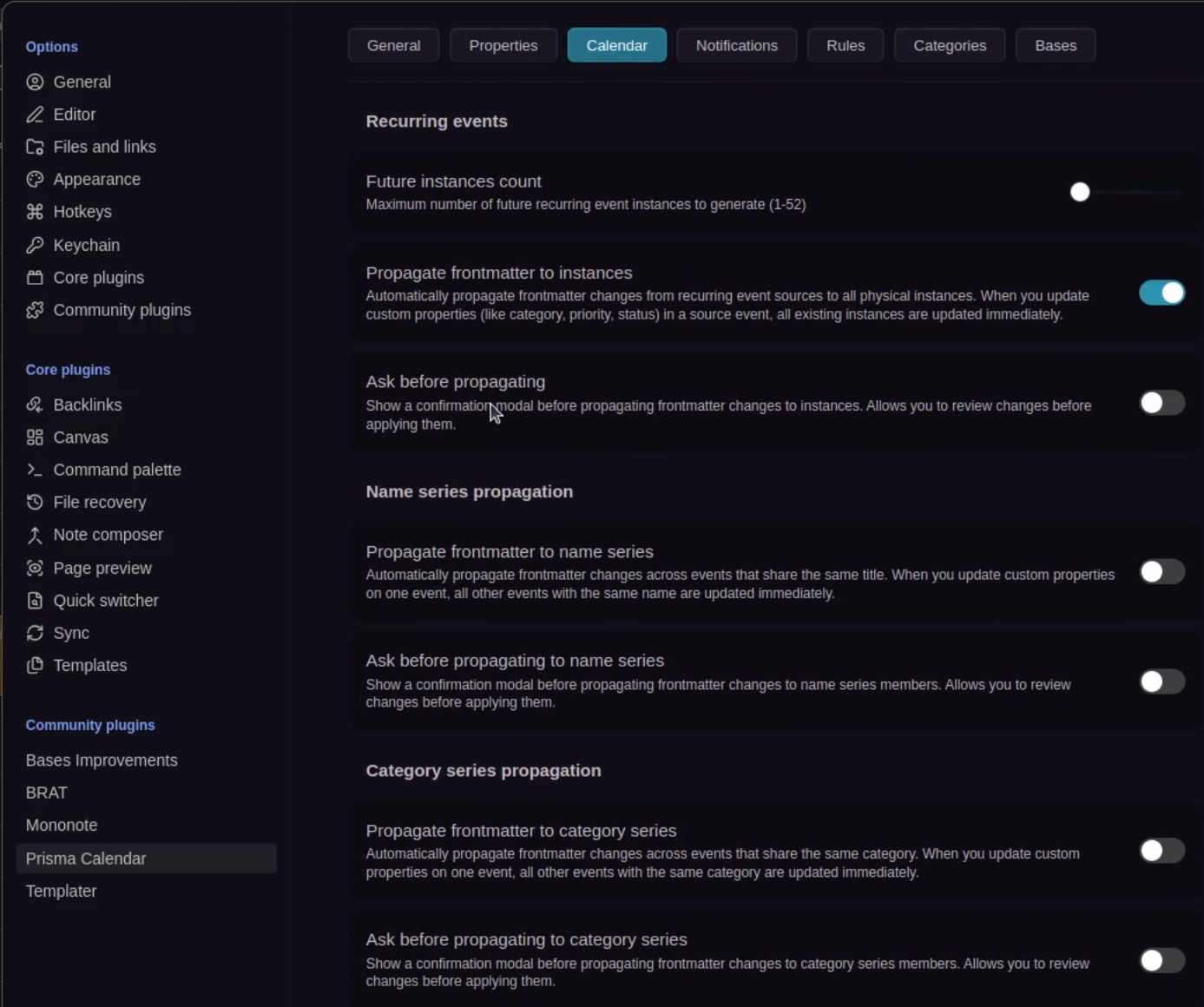
- Both Disabled: Frontmatter changes are not propagated to instances. Each instance maintains its own independent frontmatter.
How Propagation Works
-
When you modify frontmatter in a source recurring event, the system detects the changes by comparing the current frontmatter with the previous state.
-
If multiple changes occur within the debounce window, they are accumulated and merged together. For example:
- Change 1:
Category: "Work"→Category: "Personal" - Change 2:
Priority: 1→Priority: 2 - Change 3: Add
Status: "In Progress" - Result: All three changes are merged and propagated together
- Change 1:
-
If a property is changed and then reverted to its original value within the debounce window, that change is automatically removed from the propagation (no unnecessary update).
-
The system only propagates the specific changes detected, preserving any instance-specific properties that weren't changed in the source.
-
If "Ask before propagating" is enabled, a modal shows all accumulated changes before applying them. If "Propagate frontmatter to instances" is enabled, changes are applied automatically after the debounce delay.
📖 See Frontmatter Propagation Settings for detailed configuration options including debounce delay and excluded properties. Propagation is also available for name-based and property-based series.
Time Propagation
When you change the start or end time of a source recurring event (e.g., moving a daily standup from 9:00 AM to 10:00 AM), the new time automatically propagates to all future physical instances that still have the original time. Past instances and instances where the time was manually changed are left untouched.
How it works:
- Edit the start or end time on the source recurring event.
- The system detects the time change and compares each future instance's time against the old source time.
- If an instance's time matches the old time, it is updated to the new time. If it doesn't match (meaning you manually adjusted that instance), it is skipped.
Key behaviors:
- Only future instances (today or later) are updated — past instances are never modified.
- Start and end times are handled independently. If only the start time changed, only start times are compared and updated.
- All-day events are not affected since they use a date property rather than start/end times.
- Time propagation always runs automatically — it does not depend on the frontmatter propagation settings.
Start Date as Calculation Point
For weekly/bi-weekly/weekdays/weekends, system finds first day matching RRuleSpec on or after Start date. For daily/monthly/quarterly/semi-annual/yearly, Start is typically the first instance.
RRuleID Management
⚠️ Never modify RRuleID - system-managed unique identifier that maintains series integrity.
Duplicate Prevention
Deterministic file paths based on (RRuleID, Instance Date) prevent duplicates. Format: [Title] [YYYY-MM-DD]-[14-digit-hash].md. Filesystem itself acts as deduplication gate — if file exists, creation skipped. Resilient to race conditions, plugin reloads, and vault sync.
Creating Recurring Events
Calendar Interface (Recommended): Right-click time slot → "Create Event" → Set RRule properties → Create
Manual: Create note with frontmatter. Add RRule property last (Prisma starts generating instances immediately when detected).
Source Navigation & Instance Management
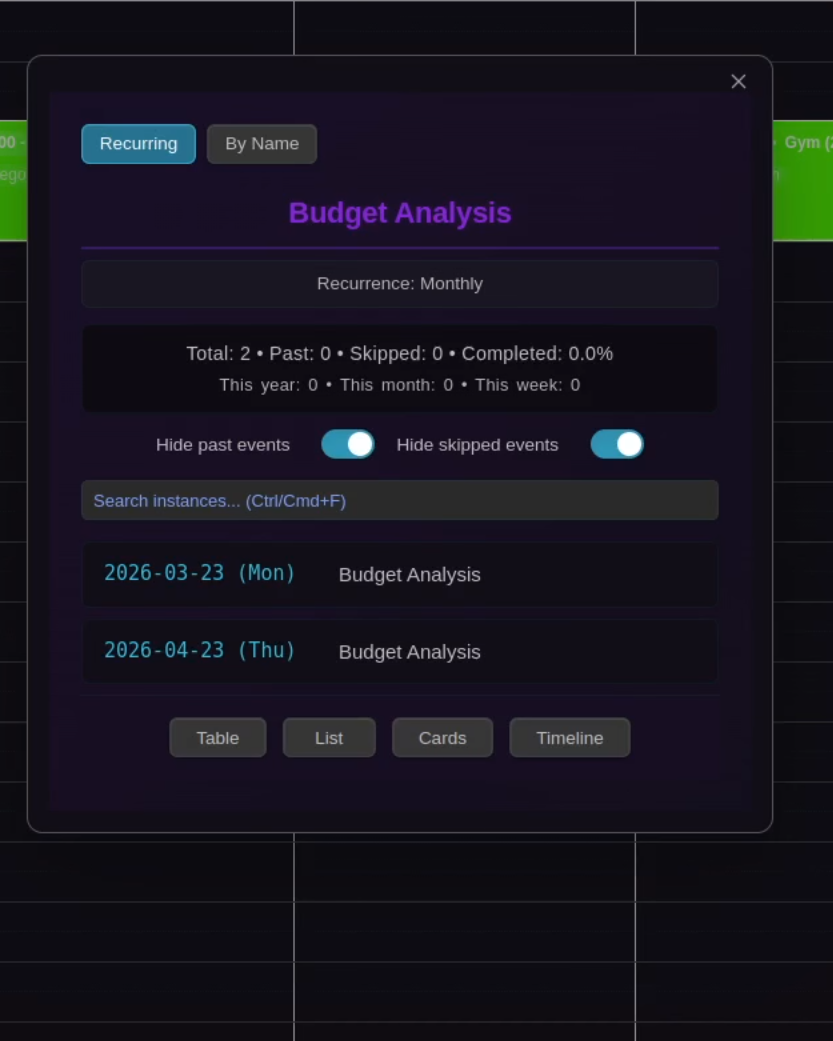
Source Button: Navigate to source event from instances Instance Dropdown: View all physical instances with "Show Past" filter Virtual Events: Click to show source event
The instance list modal includes:
- Category-Colored Background: When the source event has a category assigned, the modal displays a subtle gradient background using the category's color
- Search & Filtering: Search instances and toggle visibility of past/skipped events
- Statistics: View completion rate with counts of past, skipped, and completed instances
- Smart Sorting: When showing past events, instances are sorted from newest to oldest (most recent first). When showing only future events, instances are sorted from oldest to newest (next occurrence first)
- Click to Open: Click any instance to open its file directly
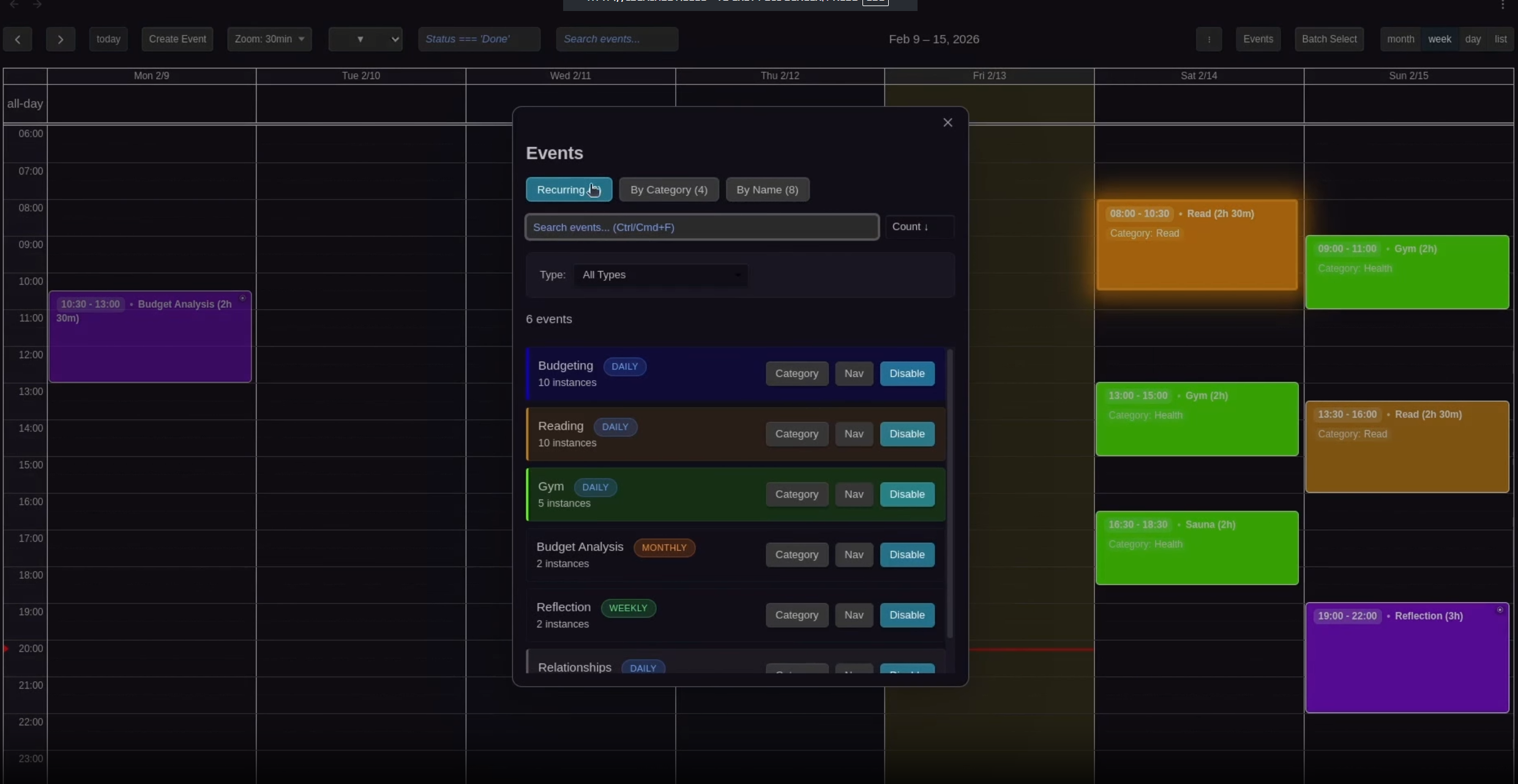
Centralized modal to view, filter, enable/disable, and navigate to all recurring events
Managing Recurring Events
The recurring events modal (accessible via command palette: "Show recurring events") provides powerful management tools:
- Clickable Recurring Events: Click on any recurring event in the list to open a detailed view of all physical instances for that specific event. This makes it easy to navigate to individual occurrences. Hold Ctrl/Cmd while clicking to open the source event file in a new tab instead
- Category Color Backgrounds: Recurring events with assigned categories display a semi-transparent background across the entire row in the category's color with a left border accent, making it easy to visually identify event types at a glance
- Category Button: Assign or change categories using the unified category assignment command. Categories automatically propagate to all physical instances based on your propagation settings
- Navigate Button: Jumps to the source event in the calendar view and highlights it for 5 seconds, useful for locating events in crowded calendars
- Enable/Disable: Toggle recurring event generation without deleting files
- Type Filtering: Filter by recurrence pattern (daily, weekly, monthly, etc.)
- Disabled Events View: Toggle to show only disabled recurring events for quick re-activation
- Clean Display: Event titles automatically strip Zettelkasten IDs for improved readability (handles both prefix and suffix formats like
20250930193327-TitleandTitle-20250930193327)
Recurrence Patterns
Available RRule Values
daily- Every daybi-daily- Every 2 daysweekdays- Every weekday (Monday through Friday)weekends- Every weekend day (Saturday and Sunday)weekly- Every weekbi-weekly- Every 2 weeksmonthly- Every monthbi-monthly- Every 2 monthsquarterly- Every 3 monthssemi-annual- Every 6 monthsyearly- Every year
Custom Intervals
For intervals not covered by presets, use the custom interval format: FREQ;INTERVAL=N where FREQ is DAILY, WEEKLY, MONTHLY, or YEARLY, and N is the number of intervals (must be 1 or greater).
Examples:
DAILY;INTERVAL=5— Every 5 days (e.g., medication schedules)WEEKLY;INTERVAL=3— Every 3 weeksMONTHLY;INTERVAL=4— Every 4 monthsYEARLY;INTERVAL=2— Every 2 years
In the modal: Select "Custom interval..." from the recurrence pattern dropdown. Choose a frequency (Days, Weeks, Months, Years) and enter the interval number.
In frontmatter: Set the RRule property directly:
RRule: DAILY;INTERVAL=5
RRuleSpec for Weekly Patterns
When using weekly or bi-weekly, specify days with RRuleSpec:
RRuleSpec: monday, wednesday, friday
RRuleSpec: tuesday, thursday
RRuleSpec: saturday, sunday
The weekdays and weekends presets automatically set RRuleSpec to the appropriate days — no manual specification needed.
RRuleUntil End Date
Use RRuleUntil to stop a recurring series on a specific day:
RRule: weekly
RRuleSpec: tuesday, thursday
RRuleUntil: 2026-05-22
RRuleUntil is inclusive. Occurrences on 2026-05-22 still appear, but anything after that day is ignored.
What it affects:
- Physical instances are never created after the until date
- Virtual events stop after the until date
- Deleted instances beyond the until date are not recreated on reload
Generation Control
Future Instances Count (1-52): How many physical files created ahead. Recommended: 1-2 for most events.
Weekly counting: Count = weeks, not days. monday, wednesday, friday + Count=2 → 6 files (2 weeks × 3 days)
Ranges: 1-2 (most users), 3-8 (intensive planning), 12+ (extensive prep)
Per-Event Override
Modal: Enable "Recurring Event" → Set "Future instances count" field
Frontmatter: Add Future Instances Count: 10 property
Use for critical events needing more instances or infrequent events needing fewer. Dynamic updates on reload.
Generate Past Events
Enable "Generate Past Events" on a recurring event to backfill physical instances from the source event's start date up to and including today. Future instances are still generated as normal — this option adds historical instances in addition to the forward-looking ones.
Modal: Enable "Recurring Event" → check "Generate Past Events"
Frontmatter: Add Generate Past Events: true property
Virtual Events
Beyond generation horizon, read-only virtual events show complete pattern without creating files.
Duplicating Physical Recurring Instances
Right-click physical instance → "Duplicate"
Duplicate copies the event's frontmatter and body into a new standalone event, stripping recurrence properties (RRuleID, Source, Instance Date). The duplicate gets a new ZettelID and is completely independent from the recurring series — it won't be affected by instance count limits.
Editing Physical Recurring Events
Editing a physical instance via the edit modal preserves the instance date in the filename. The filename format [Title] [YYYY-MM-DD]-[hash].md is maintained even when the title is changed — for example, renaming "Team Meeting" to "Weekly Standup" produces Weekly Standup 2025-02-03-00001125853328.md, keeping the original instance date intact.
Moving Physical Recurring Events
Drag and drop updates date properties and renames filename. Normal instances preserve original Recurring Instance Date. Duplicated/ignored instances update Recurring Instance Date to match new date.
Disabling and Deleting
Confirmation modal appears when disabling or deleting source with physical instances. Choose to delete all associated physical events or preserve them while stopping future generation.
Best Practices
- Start Simple: Begin with basic patterns, expand as needed
- Use Meaningful Templates: Configuration node is complete template - include all structure, frontmatter, and content
- Don't Touch System Properties: Never modify
RRuleID, don't manually create/delete instance files