Integrations
CalDAV sync and ICS URL subscriptions require Prisma Calendar Pro. ICS manual import/export is free.
Sync with external calendars or exchange events using standard calendar formats.
Overview
Prisma Calendar offers three integration methods:
- CalDAV Sync - Automatic read-only synchronization from CalDAV servers (Fastmail, Nextcloud, iCloud) to Obsidian
- ICS URL Subscriptions - Automatic read-only synchronization from public ICS URLs (Outlook, Google public links) to Obsidian
- ICS Import/Export - Manual exchange of event files with any calendar application
ICS Format: When exporting or importing ICS files, you select a timezone for conversion. Prisma Calendar converts between ICS timestamps and your local times during import/export to ensure events display correctly in any calendar application.
Compatible with: Google Calendar, Apple Calendar (iCal), Microsoft Outlook, Nextcloud Calendar, Thunderbird, and any application supporting ICS/iCalendar format.
Example with Google Calendar
Exporting Events
How to Export
- Open command palette (
Ctrl/Cmd + P) - Run "Prisma Calendar: Export calendar as ICS"
- Select export options:
- Calendar: Choose which calendar to export
- Timezone: Select timezone for exported events
- Exclude skipped events: Toggle to include/exclude skipped events
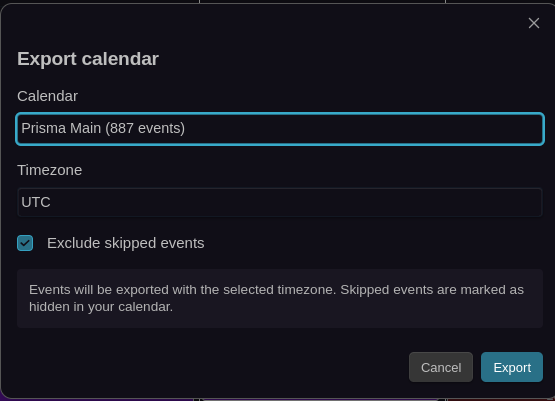
Exported Data
Each event includes:
| Field | Description |
|---|---|
| UID | Unique identifier for idempotent imports |
| SUMMARY | Event title without Zettel ID |
| DTSTART/DTEND | Event timing |
| DESCRIPTION | Full markdown content |
| LOCATION | Event location (if set) |
| ATTENDEE | Event participants (if set) with mailto: URIs and common name (CN) |
| CATEGORIES | Event categories |
| VALARM | Notification reminders |
| URL | Obsidian URI link back to note |
Custom Properties: Prisma-specific metadata (X-PRISMA-FILE, X-PRISMA-VAULT, X-PRISMA-EVENT-ID) enables linking back to original notes and maintaining idempotency on re-import.
Location and Participants: Location is exported as the standard ICS LOCATION field. Participants are exported as multiple ATTENDEE fields with proper RFC 5545 formatting (e.g., ATTENDEE;CN=Alice;ROLE=REQ-PARTICIPANT:mailto:Alice). This ensures full compatibility with Google Calendar, Outlook, Apple Calendar, and other standards-compliant calendar applications.
Output Location: Exported files saved to Prisma-Exports/ folder in your vault.
Importing Events
How to Import
- Open command palette (
Ctrl/Cmd + P) - Run "Prisma Calendar: Import ICS file"
- Select the ICS file to import
- Choose destination calendar
- Select timezone for conversion
- Click "Import" to create notes
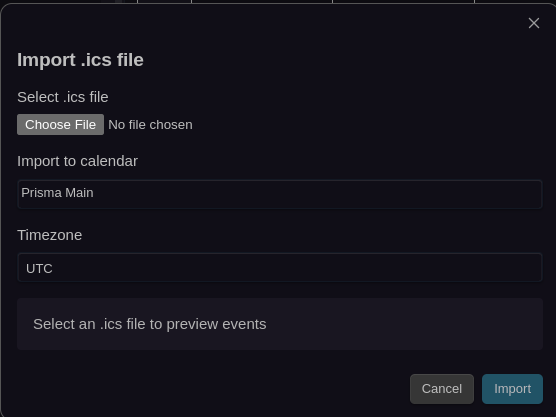
Import Process
For each imported event, Prisma Calendar:
- Creates a new markdown note in the calendar's folder
- Generates a Zettel ID timestamp for the filename
- Populates frontmatter:
- Start/End dates
- All-day flag
- Location (from
LOCATIONfield) - Participants (from
ATTENDEEfields, extracting common names or email addresses) - Categories (from
CATEGORIESfield) - Notification settings (from
VALARMif present)
- Adds event description as note content
Malformed Events
If any event is malformed (e.g., a corrupted timestamp from a third-party calendar tool), Prisma will skip just that event and import the rest. The import preview surfaces the skipped count and the full error for each one is logged to the developer console.
Recurring Event Support
Recurring events defined with ICS RRULE properties are automatically converted to Prisma's internal recurring event format. The following recurrence patterns are supported:
| ICS RRULE | Prisma Recurrence Type |
|---|---|
FREQ=DAILY | Daily |
FREQ=DAILY;INTERVAL=2 | Bi-daily (every 2 days) |
FREQ=WEEKLY | Weekly |
FREQ=WEEKLY;INTERVAL=2 | Bi-weekly |
FREQ=MONTHLY | Monthly |
FREQ=MONTHLY;INTERVAL=2 | Bi-monthly |
FREQ=MONTHLY;INTERVAL=3 | Quarterly |
FREQ=MONTHLY;INTERVAL=6 | Semi-annual |
FREQ=YEARLY | Yearly |
For weekly and bi-weekly events, BYDAY values (e.g., BYDAY=MO,WE,FR) are mapped to weekday selections.
Imported recurring events are disabled by default (Skip: true). This is because integration sources like CalDAV and ICS subscriptions typically provide individual occurrences of recurring events — if Prisma also generated its own instances from the RRULE, you would get duplicates. The RRULE metadata is preserved in frontmatter so you can see the recurrence pattern, but instance generation does not happen automatically.
If you want Prisma to generate recurring instances from an imported event (e.g., for a manual ICS import where individual occurrences are not synced), set Skip to false in the event's frontmatter. The recurring event system will then create instances normally.
Unsupported RRULE patterns (e.g., INTERVAL=3 on weekly) are imported as single non-recurring events.
This applies to all import paths: manual ICS import, ICS URL subscriptions, and CalDAV sync.
Compatibility: Import automatically handles ICS files from Google Calendar, Outlook, Apple Calendar, Fastmail, Nextcloud, and any RFC 5545-compliant calendar application. Location and participant data is preserved during round-trip export/import.
Timezone Handling
Export: Event times from your vault are converted to the selected timezone for the ICS file. The ICS file includes X-WR-TIMEZONE so external calendar apps display the correct local time.
Import: ICS event times are converted from the source timezone to your selected timezone and stored in frontmatter as local datetime strings.
CalDAV Integration
Overview
CalDAV integration enables read-only synchronization from external CalDAV servers to Prisma Calendar. Connect your Fastmail, Nextcloud, iCloud, or any CalDAV-compatible calendar to automatically import events into Obsidian.
Key Benefits:
- Automatic one-way sync (server → Obsidian)
- Create Obsidian notes for external events
- Incremental sync using ETags for efficiency
- Server-side deletions propagate to your vault via RFC 6578 sync-tokens — removing an event on the server removes the note locally on the next sync
- Transparent fallback to full refetch when a stored sync-token is invalidated by the server
- No manual import/export required
Important: CalDAV sync is read-only. Events created or modified in Obsidian are not synced back to the CalDAV server.
Setting Up CalDAV
CalDAV passwords are stored in Obsidian's SecretStorage, not in data.json. Secrets are managed centrally by Obsidian and can be shared across plugins. Create secrets in Settings → General → Manage secrets before adding a CalDAV account.
Recommended: Use app-specific passwords instead of your main account password.
Adding an Account
- Create a secret in Obsidian Settings → General → Manage secrets containing your CalDAV password
- Open Prisma Calendar Settings → Integrations → CalDAV
- Click "Add CalDAV account"
- Configure account details:
- Account name: Display name (e.g., "Work Calendar")
- Server URL: CalDAV server endpoint
- Auth method: Basic or OAuth 2.0
- Username: Your account username
- Password: Select a secret from SecretStorage (use the dropdown picker)
- Timezone: Timezone for event conversion
- Calendar icon (optional): Icon/emoji to display on synced events (e.g., 📅, 🔄, ☁️)
- Click "Test connection" to verify credentials
- Click "Save"
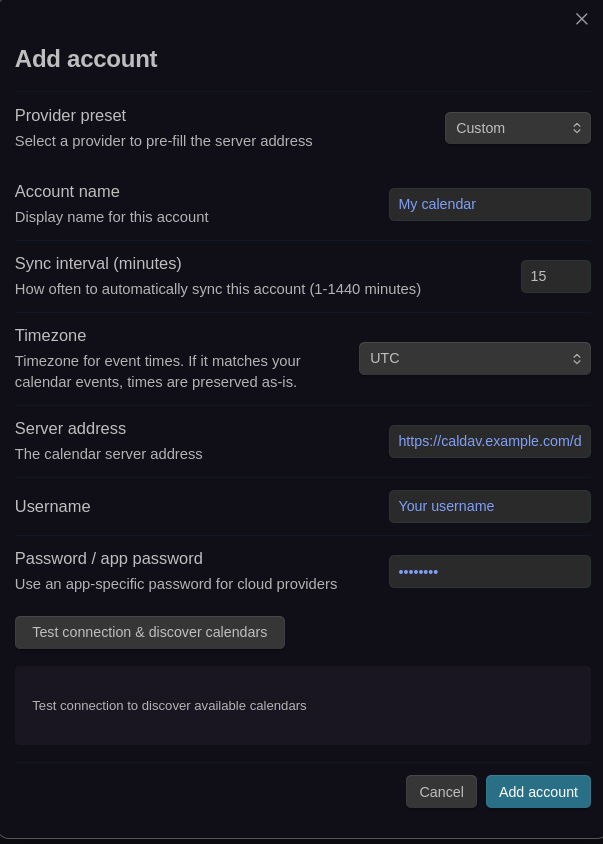
Selecting Calendars
After adding an account:
- Click "Select calendars" for the account
- Browse available calendars from the server
- Check calendars you want to sync
- Each account can sync multiple calendars to a single Prisma planning system
Sync Configuration
Configure automatic synchronization behavior:
| Setting | Default | Description |
|---|---|---|
| Allow auto-sync | true | Enable periodic background syncing |
| Sync on startup | true | Sync when Obsidian starts |
| Sync interval | 15 minutes | How often to sync (1-1440 minutes) |
| Show sync notifications | true | Display sync status messages |
| Integration event color | Purple | Color applied to CalDAV-synced events. Clear to use color rules instead |
| Calendar icon | None | Optional icon/emoji displayed on synced events to identify the source calendar |
Manual Sync: Use "Sync now" button in CalDAV settings to trigger immediate synchronization.
Deleting an Account: When deleting an account with synced events, you'll be prompted to choose whether to also delete the synced event notes. If you choose to delete events, a progress modal shows deletion progress with per-file status updates.
Calendar Icons: When you set an icon for a CalDAV account, it appears in the top-right corner of all events synced from that calendar. This makes it easy to visually identify which external calendar each event came from. Icons use the same marker system as recurring events and holidays.
How CalDAV Sync Works
Initial Sync
- Fetches all events from selected calendars
- For each event:
- Creates markdown note in calendar's folder
- Generates Zettel ID for conflict-free filename
- Populates frontmatter with event data
- Adds CalDAV metadata for tracking
- Stores a sync-token returned by the server — future syncs only fetch changes since this cursor
Incremental Updates
On subsequent syncs (RFC 6578 sync-collection):
- Sends the stored sync-token to the server
- Server returns only the delta: created, updated, and deleted events since the token
- ETag comparison on updated events: skips frontmatter rewrites when nothing changed
- Server-reported deletions: the local note for each tombstoned event is moved to trash and removed from the tracking index
- Stores the new sync-token for the next run
Renames are handled transparently — a title change on the server renames the local file while preserving its Zettel ID.
Sync-Token Invalidation Recovery
If the server expires or rejects the stored sync-token (common on iCloud / Nextcloud after long offline periods, major server upgrades, or user-initiated cache resets), Prisma detects the error signal, clears the stored token, and falls back to a full refetch. The full refetch intentionally does not propagate deletions (absence from a refetch is not a reliable delete signal); the next successful sync will again store a fresh token and resume incremental delete tracking.
This recovery is automatic — no user action required — and surfaces a single console warning so you can audit recoveries in the dev tools if needed.
Where the Sync-Token Lives
The sync-token is a per-device cursor — each machine you open the vault on tracks its own view of the server. Tokens are stored in the browser's localStorage (keyed by account ID + calendar URL), not in data.json, so they do not replicate across devices via iCloud / Syncthing / OneDrive / git. If tokens roamed with the vault, device B would unknowingly present device A's cursor and silently miss every change that happened between the two syncs.
Losing localStorage (incognito mode, manual clear) triggers a single free full refetch on the next sync — never data loss.
Event Metadata
Synced events include CalDAV tracking in frontmatter:
accountId: Which CalDAV account manages this eventcalendarHref: Source calendar URLobjectHref: Specific event resource URLetag: Version tag for change detectionuid: iCalendar unique identifierlastModified: When event was last changed on serverlastSyncedAt: When Prisma last synced this event
Visual Integration
CalDAV-synced events display with a custom color:
- Open Settings → Integrations → CalDAV
- Set "Integration event color" (default: purple
#8b5cf6) - Calendar immediately updates all CalDAV events
To disable the integration color and let synced events use your normal color rules, click "Clear" next to the color picker. You can re-enable it at any time by picking a new color.
Color Priority: When set, CalDAV integration color overrides other color rules. When cleared, synced events follow the same color resolution as all other events.
Title Changes and File Renaming
When an event title changes on the CalDAV server:
- Prisma detects title change via ETag
- Renames file with preserved Zettel ID
- Updates frontmatter automatically
Example: Team Meeting - 20250115140000.md → Weekly Standup - 20250115140000.md
ICS URL Subscriptions
Overview
ICS URL subscriptions enable read-only synchronization from public ICS URLs to Prisma Calendar. Subscribe to Outlook, Google Calendar, or any service that provides a public .ics URL to automatically import events into Obsidian.
Key Benefits:
- Automatic one-way sync (URL → Obsidian)
- Create Obsidian notes for external events
- Full sync with deletions — events removed from the source are deleted locally
- No authentication needed — works with public sharing links
Setting Up ICS Subscriptions
ICS subscription URLs (which often contain embedded auth tokens) are stored in Obsidian's SecretStorage, not in data.json. Create a secret containing the full ICS URL in Settings → General → Manage secrets before adding a subscription.
Adding a Subscription
- Create a secret in Obsidian Settings → General → Manage secrets containing the full ICS URL
- Open Prisma Calendar Settings → Integrations → ICS URL Subscriptions
- Click "Add subscription"
- Configure subscription details:
- Subscription name: Display name (e.g., "Work Calendar")
- ICS URL: Select a secret from SecretStorage containing the
.icsURL (use the dropdown picker) - Sync interval: How often to sync (1-1440 minutes, default: 60)
- Timezone: Timezone for event conversion
- Calendar icon (optional): Icon/emoji to display on synced events (e.g., 📅, 🔄, ☁️)
- Click "Test URL" to verify the URL and preview event count
- Click "Add subscription" to save
Sync Configuration
Configure automatic synchronization behavior:
| Setting | Default | Description |
|---|---|---|
| Allow auto-sync | true | Enable periodic background syncing |
| Sync on startup | true | Sync when Obsidian starts |
| Sync interval | 60 minutes | How often to sync (per subscription) |
| Show sync notifications | true | Display sync status messages |
| Integration event color | Purple | Color applied to ICS subscription-synced events. Clear to use color rules instead |
| Calendar icon | None | Optional icon/emoji displayed on synced events to identify the source calendar |
Manual Sync: Use "Sync now" button in subscription settings or run the "Prisma Calendar: Sync ICS subscriptions" command.
Calendar Icons: When you set an icon for an ICS subscription, it appears in the top-right corner of all events synced from that subscription. This makes it easy to visually identify which external calendar each event came from. Icons use the same marker system as recurring events and holidays.
How ICS URL Sync Works
Sync Process
- Fetches the ICS file from the URL
- Parses events from the ICS content
- For each event (identified by UID):
- New event: Creates markdown note with event data and sync metadata
- Changed event (lastModified differs): Updates frontmatter, renames file if title changed
- Unchanged event: Skipped for efficiency
- Deleted events: Events present locally but missing from the remote ICS are removed cleanly, even when background metadata updates are in-flight
Event Metadata
Synced events include ICS subscription tracking in frontmatter:
subscriptionId: Which subscription manages this eventuid: iCalendar unique identifierlastModified: When event was last changed on the sourcelastSyncedAt: When Prisma last synced this event
Deleting a Subscription
When deleting a subscription that has synced events, you'll be prompted to choose:
- Delete subscription and events: Removes the subscription and all locally synced event notes. A progress modal shows deletion progress with per-file status updates.
- Delete subscription only: Removes the subscription but keeps the synced notes in your vault
Related Features
- Event Skipping - Hide events without deleting
- Multiple Planning Systems - Manage separate planning systems
- Notifications - Configure event reminders