Time Tracker
Built-in stopwatch in Create/Edit Event modal for precise time tracking with automatic break tracking.
Quick Start
- Open Create Event modal
- Expand ▶ Time tracker header
- Click ▶ start (fills Start Date with current time and End Date with start time + 5 minutes, starts tracking)
- Work on your task - watch the Session timer at the bottom track your current work session
- Click ⏸ break when you need a break - the Current Break timer appears at the bottom
- Click ▶ resume (on pause button) when ready to continue - the Session timer restarts from zero
- Click ⏹ stop when done (updates End Date to current time and fills Break field with accumulated break time)
- Optional: Click ▶ resume (new button) to continue tracking without resetting start time
- Save event
Tip: Use the Session timer to track individual work sessions, and the Total Break timer to see cumulative break time across your entire tracking session.
Interface
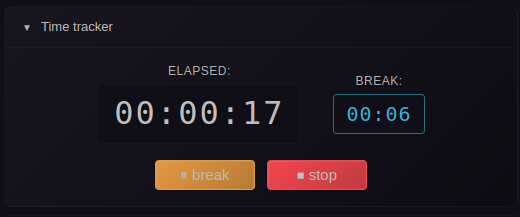
Collapsed (default): Click ▶ Time tracker header to expand
Controls:
- ▶ start: Begin tracking, fills Start Date with current time and End Date with start time + 5 minutes. The end time is continuously updated while tracking. Starts both the total timer and session timer.
- ▶ start new: (After stopping) Start a completely new tracking session with a fresh start time and end time set to start + 5 minutes.
- ▶ continue: (Optional, when enabled in settings) Continue tracking from the existing start date in the event. Calculates elapsed time based on the event's start time and resumes tracking from that point. Perfect for resuming work on existing events.
- ⏸ break: Pause productive time and start tracking break time. The total timer continues, but the session timer pauses and the current break timer starts.
- ▶ resume (during break): End break and resume productive time. The current break time is added to total break time, and the session timer restarts from zero.
- ▶ resume (after stop): Continue tracking from where you left off without resetting the start time. Perfect for resuming work after interruptions while maintaining accurate time tracking.
- ⏹ stop: End session, fills End Date and Break field. Stops all timers and saves the accumulated break time.
- − minimize: Save modal state, continue tracking internally. Restore via "Restore minimized event modal" command
Start vs Continue
▶ start: Creates a new start time (now) and end time (now + 5 minutes) and begins tracking. The end time is automatically updated every 5 minutes while tracking. Use this when:
- Creating a brand new event
- Starting work exactly when you click the button
- You want both start and end times to be auto-filled based on the current time
▶ continue: Uses the existing start time from the event and continues from there. If the end date is in the past, it is automatically updated to the current time. Use this when:
- Resuming work on an existing event
- The event already has a start time you want to preserve
- You want the timer to show elapsed time since the original start
Example: An event has Start: 10:00 AM and it's now 10:30 AM.
- Click ▶ start: Start time changes to 10:30 AM, End time set to 10:35 AM (10:30 + 5 min), timer starts from 00:00:00
- Click ▶ continue: Start time stays 10:00 AM, End time unchanged, timer shows 00:30:00 and continues
Continue From Existing Start
▶ continue always uses the current value of the Start Date field — including any edits you make before clicking. If you open the modal at Start: 10:00 AM and change it to 09:00 AM before clicking ▶ continue, the timer resumes from 09:00 AM, not the value the modal opened with.
The same applies to the ▶ continue button that appears after ⏹ stop: if you adjusted the Start Date while the stopwatch was running (or after stopping it), pressing ▶ continue again recalculates Total from the latest Start Date value. The accumulated break tally is preserved.
Resume After Stopping
How it works:
- Click ⏹ stop - the timer stops and fills the End Date field
- The ▶ resume button appears alongside ▶ start new buttons
- Click ▶ resume to continue tracking from where you left off
- The start time remains unchanged, and the timer continues accumulating time accurately
Difference from Break:
- Break (⏸): Pauses the timer but keeps it in an active state. The total timer continues running. Best for short breaks during active work.
- Resume (after stop): Restarts the timer after it has been completely stopped. The end time was filled, but you want to continue. Best for resuming work after interruptions.
Minimize & Auto-Save
Manual Minimize: Click − to save modal state (pre-configure events for later)
Auto-Save: When the timer is running, the minimized session is preserved by any close path — ESC, click-outside, Cancel, or pressing Save. The Save button writes the event AND keeps the running session alive in the background so you can keep tracking the same file.
Create → Restore stays linked to the new file: If you press Save in a create modal while the stopwatch is running, the auto-saved session is rebound to the just-created file as soon as it lands on disk. The next Restore minimized event modal opens an edit modal targeting that file, so further changes propagate to it.
Restore: Ctrl/Cmd+P → "Restore minimized event modal"
Quick Category Assignment: Ctrl/Cmd+P → "Assign categories to minimized event" - Update categories without restoring the full modal
Auto-Updates: While tracking time with a minimized modal, the modal automatically stays in sync with the event file:
- File Changes: If you edit the event from another window (e.g., rename the file, change properties), the minimized modal updates automatically with the new information
- File Deletion: If the event file is deleted, the minimized modal is cleared automatically with a notification
- Smart Tracking: Updates only occur when the stopwatch is actively running or paused, ensuring preset saves aren't overwritten
Auto-Stop on New Event: When you use "Create new event with stopwatch" while a previous stopwatch event is minimized and running, the previous event is automatically stopped and saved before the new one is created. This lets you chain event tracking sessions seamlessly — just press the shortcut to start tracking a new activity.
Trigger Stopwatch (Context Menu): Right-click any event → "Trigger stopwatch" to instantly start time tracking. This one-click action:
- Sets start time to now, starts the stopwatch, saves the event, and auto-minimizes
- Automatically stops any currently running stopwatch first
- Converts all-day events to timed events automatically
- Shown by default in the context menu — can be hidden via Settings → Context menu items
Periodic End Time Sync: While a stopwatch is running in a minimized modal, the event's end time is automatically updated in the file every 5 minutes. This keeps the end time in sync with reality and protects against data loss if Obsidian crashes or is force-closed.
Notes: Only one modal at a time. State lost if Obsidian closed.
Displays
The stopwatch displays multiple timers to give you complete visibility into your time tracking:
Top Row Timers
Total (HH:MM:SS): Total elapsed time since you started the stopwatch, including all breaks. This represents the complete duration from when you clicked "start" until now.
Total Break (HH:MM:SS): Accumulated break time across all breaks taken during the session. This includes all past breaks plus the current break (if paused). Saved to the Break field in minutes (with decimal precision) when you stop the timer.
Bottom Timer (Mid Timer)
Session (HH:MM:SS): Shown when the stopwatch is running. Displays the current session time - the time elapsed since you last clicked "start" or "resume". This timer resets each time you resume from a break, giving you visibility into how long your current work session has been.
Current Break (HH:MM:SS): Shown when the stopwatch is paused (in break mode). Displays the duration of the current active break - how long you've been on break since clicking "break". This helps you track individual break durations.
Note: The mid timer automatically switches between "Session" and "Current Break" based on whether you're actively working or on break. Only one is visible at a time.
Integration
Statistics: Break time subtracted from duration for accurate tracking
Duration Field: Updates automatically on start/stop
Event Presets: Works alongside presets for template + precision timing
Configuration
Enable/Disable: Settings → [Calendar] → General → "Show time tracker in event modal"
Continue Button: Settings → [Calendar] → General → "Show 'continue' button" (disabled by default). Enable this to show the continue button alongside the start button.
Break Property: Settings → [Calendar] → Properties → "Break property" (default: Break)
Timed Events Only: Only visible when "All day" is unchecked
Related Features
- Statistics - Break time subtracted from duration
- Event Creation - Other creation features
- Event Presets - Pre-fill templates