Rules Settings
Event Colors
Configure event colors based on frontmatter properties with a clean, modern interface:
- Default event color: Fallback color when no rule matches (uses standalone color picker)
- Color rules: Evaluated top-to-bottom; first match wins
- Clean design: Color pickers appear as standalone elements without bulky setting wrappers
- Inline layout: Expression input, color picker, and controls all in a single compact row
- Easy reordering: Move rules up/down with arrow buttons
- Toggle rules: Enable/disable rules with checkbox without deleting them
UI Features:
- Compact single-row layout for each rule
- Native color input for cleaner appearance
- Order indicator (#1, #2, etc.) shows evaluation priority
- Enable/disable checkbox for quick rule toggling
- Expression input with inline editing
- Move up/down arrows for reordering
- Delete button (×) for removing rules
Examples:
Priority === 'High'         → red
Status === 'Done'           → #22c55e
Project === 'Work'          → hsl(210, 70%, 50%)
Type === 'Meeting'          → #f59e0b
Tips:
- Use property names directly (no prefix needed)
- Colors support CSS names, hex, or HSL
- Rules are evaluated in order - put more specific rules first
- Disabled rules are skipped during evaluation
Event Filtering
All expressions must evaluate to true; events failing any filter are excluded.
Status !== 'Inbox'
Priority === 'High'
Status === 'Done' || Status === 'In Progress'
!_Archived
Array.isArray(Project) && Project.length > 0
Untracked Event Filtering
Filter untracked events (events without dates) based on their frontmatter properties. This works the same as event filtering but only applies to untracked events in the dropdown.
Status !== 'Inbox'
Type === 'Task'
!_Archived
Filter Presets
Create named filter expressions for quick access via the calendar toolbar dropdown:
- Go to Settings → Rules → Filter Presets
- Click "Add Preset"
- Enter a name (e.g., "High Priority Only")
- Enter the filter expression (e.g.,
Priority === 'High')
Using Presets:
- Click the ▼ dropdown button in the calendar toolbar (next to the zoom button)
- Select a preset to apply its filter instantly
- Select "Clear" to remove the active filter
Notes:
- Filter presets use the same expression syntax as event filtering
- Presets are per-calendar configuration
- Active preset filters are temporary and reset when the calendar is reloaded
Categories Settings
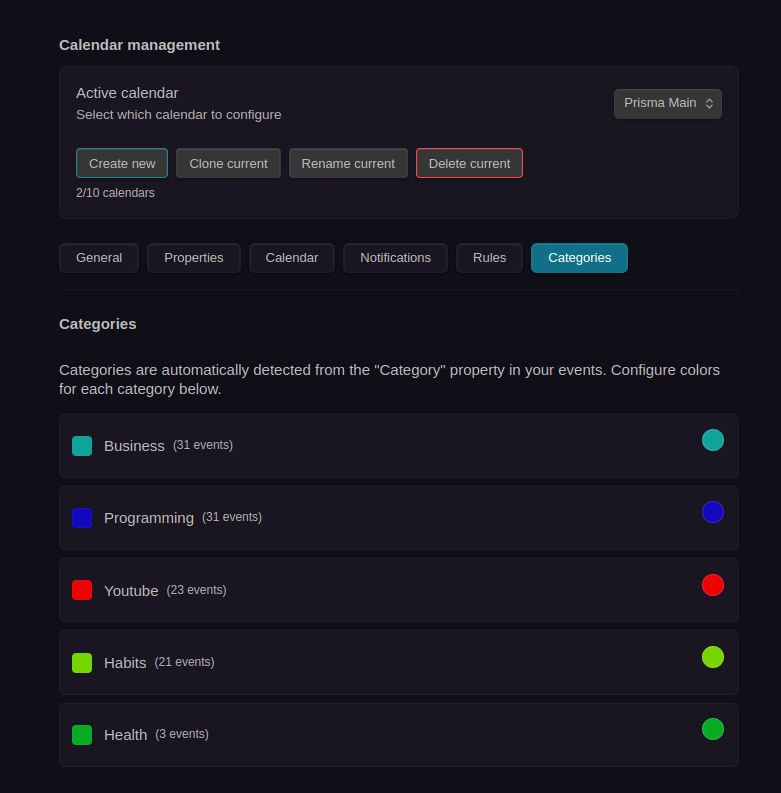
Manage category colors visually with the Categories Settings section:
- Go to Settings → Categories
- View all categories automatically detected from your events
- See event counts and percentages for each category (e.g., "Work (15 events - 45.5%)")
- Configure colors using the color picker for each category
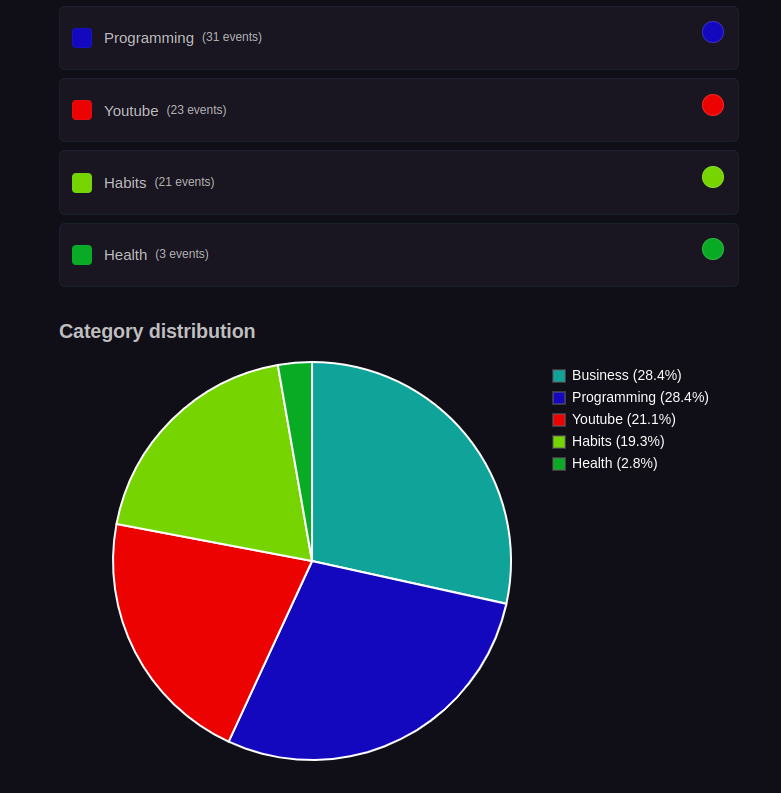
- View a pie chart showing category distribution with percentages
- Rename or delete categories using the edit (pencil) and delete (trash) buttons
Features:
- Automatic Detection: Categories are automatically collected from all events using the category property configured in Settings → Properties
- Read-Only Categories: Categories cannot be edited directly - they're detected from event usage
- Color Management: Each category color is stored as a color rule (e.g.,
Category.includes('Work')) and updates in real-time - Visual Distribution: Pie chart shows percentage breakdown of events across categories
- Sorted by Usage: Categories are sorted by event count (most used first)
- Category Management: Rename and delete categories with confirmation modals showing affected event counts
After renaming or deleting categories, restart Obsidian for changes to fully propagate across all calendar views and settings.
How Category Colors Work:
- When you set a color for a category, it creates or updates a color rule behind the scenes
- The expression format is:
{CategoryProperty}.includes('{CategoryName}') - Colors apply immediately to all events with that category
- If no color is set for a category, it uses the default event color
Example:
If your category property is Category and you set a color for "Work", it creates a color rule:
Category.includes('Work') → #3b82f6
All events with Category: Work will now use that color.
Auto-Assign Categories
Configure automatic category assignment for events based on event names. When you finish typing the event title in either the create or edit modal, the system checks for matches and assigns categories accordingly.
Auto-assign when name matches category
Automatically assigns a category when the event name matches a category name (case-insensitive, ignoring ZettelID and instance dates).
Behavior:
- Create modal: Categories are auto-assigned when you blur the title field (click away or tab out)
- Edit modal: Categories are auto-assigned when you change the title and blur the title field
- Applies to both: Name matching and custom presets work consistently in both create and edit workflows
Custom category assignment presets
Define custom rules to map specific event names to multiple categories. Each preset can now include multiple comma-separated event names that will all receive the same category assignments.
Features:
- Multiple event names per preset: Use commas to define multiple event names in a single preset (e.g., "Coding, Work, Dev" → Software, Business)
- Flexible matching: Any of the comma-separated names will trigger the category assignment
- Colorful visual design: Selected categories display in their configured colors for easy identification
- Compact layout: Single-row design with inline elements for better space efficiency
- Easy management: Add categories with "+" button, remove with "×" button on each tag
Example Presets:
- Event names:
Coding, Work, Dev→ Categories: Software, Business - Event names:
Gym, Exercise, Workout→ Categories: Health, Fitness - Event names:
Reading, Study→ Categories: Learning, Personal Development
See Categories - Auto-Assignment for detailed usage and examples.