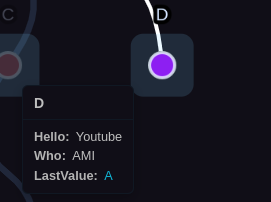
Property Tooltips

Property tooltips provide instant previews of node frontmatter when you hover over nodes in the graph. They're perfect for quick reference without entering zoom mode.

How Tooltips Work

Hover to Show

  1. Hover over any node in the graph
  2. Wait 1 second (hover delay)
  3. Tooltip appears near the node
  4. Move mouse away to hide tooltip

What's Shown

Tooltips display:

  • Node title (file name)
  • All frontmatter properties (key-value pairs)
  • Wiki links (clickable)
  • Arrays (formatted as lists)
  • Objects (nested display)

Property Filtering

Tooltips respect property display settings:

Hide Empty Properties:

  • Enabled: Only properties with values shown
  • Disabled: All properties shown, even empty

Hide Underscore Properties:

  • Enabled: Properties starting with _ hidden
  • Disabled: All properties shown

Configure in settings

Enabling/Disabling Tooltips

Global Toggle

In Settings:

  1. Settings → Nexus Properties
  2. Find "Show node tooltips"
  3. Toggle on/off

Default: Enabled

Per-Session Toggle

Command: "Nexus Properties: Toggle Tooltips" (if available)

Or assign a hotkey in Settings → Hotkeys

Hotkey Recommendation

Assign a hotkey like Ctrl+T for quick tooltip toggling during graph exploration.

When Zoom Mode Active

Tooltips are automatically disabled in zoom mode:

  • Prevents tooltip/preview overlap
  • Focus on zoom preview instead
  • Re-enabled when exiting zoom mode

Tooltip Content

Title Section

Shows the file name (without extension):

  • Bold text
  • Larger font
  • Separated from properties

Properties Section

Shows all frontmatter in key-value format:

Simple values:

status: active
priority: high
type: project

Boolean values:

completed: Yes
archived: No

Array values:

tags:
• work
• important
• project

Wiki link values:

Parent: [[Project Overview]]
Related: [[Note A]], [[Note B]]

Nested object values:

metadata:
author: John Doe
created: 2024-01-15

Wiki links in tooltip content are fully clickable:

  1. Hover to show tooltip
  2. Move mouse onto tooltip (tooltip stays visible)
  3. Click any wiki link
  4. Graph navigates to that node
  5. Tooltip updates to show new node

Use cases:

  • Quick navigation through relationships
  • Exploring parent/child links
  • Following related notes

Tip: You can chain-navigate through multiple tooltips without clicking nodes directly!

External links (URLs) in frontmatter are also clickable:

  • Click to open in browser
  • Tooltip remains visible
  • Graph stays in current view

Tooltip Configuration

Tooltip Width

Control the maximum width of tooltips:

Setting: Tooltip Width Range: 150px - 500px Default: 255px

Narrow (150-200px):

  • Compact display
  • Good for simple properties
  • Less screen space

Medium (250-300px):

  • Balanced (recommended)
  • Good for most use cases
  • Shows properties clearly

Wide (400-500px):

  • Spacious display
  • Good for extensive frontmatter
  • Shows long values without wrapping

Property Display Settings

Hide Empty Properties:

# ❌ Without setting (shows empty)
status:
priority:
tags:

# ✅ With setting (hides empty)
# (only shows if has values)

Hide Underscore Properties:

# ❌ Without setting (shows all)
_ZettelID: 20240115120000
_internal: system-value
status: active

# ✅ With setting (hides underscore)
status: active

Configure in settings

Tooltip Behavior

Positioning

Tooltips auto-position to stay visible:

Default: Above and to the right of node

If near edge:

  • Flips to left if near right edge
  • Flips below if near top edge
  • Always stays within viewport

Hover Delay

Default: 1 second before tooltip appears

Why?

  • Prevents accidental triggers
  • Reduces visual noise
  • Only shows when intentionally hovering

Not configurable (consistent UX)

Tooltip Lifetime

Tooltip remains visible while:

  • Mouse is over the node
  • Mouse is over the tooltip itself (for clicking links)

Tooltip hides when:

  • Mouse leaves node and tooltip area
  • Another tooltip is triggered
  • Zoom mode is entered
  • Graph is clicked elsewhere

Use Cases

Quick Property Check

Scenario: Checking task status

  1. Hover over task node
  2. See status in tooltip
  3. No need to open file or enter zoom mode

Benefit: Instant information, no disruption

Relationship Navigation

Scenario: Following parent-child links

  1. Hover over node to see parents/children
  2. Click parent link in tooltip
  3. Graph navigates to parent
  4. Hover to see parent's properties
  5. Continue exploring

Benefit: Fluid navigation through relationships

Data Validation

Scenario: Checking if properties are set correctly

  1. Apply filter to show specific notes
  2. Hover each node to verify properties
  3. Identify missing or incorrect values
  4. Quick audit without opening files

Benefit: Fast validation of bulk property updates

Property Comparison

Scenario: Comparing sibling notes

  1. View hierarchy in graph
  2. Hover each sibling
  3. Compare properties side-by-side (mentally)
  4. Identify patterns or differences

Benefit: Quick comparison without context switching

Combining with Other Features

Tooltips + Color Rules

  1. Color nodes by category (e.g., status)
  2. Hover to see why that color was applied
  3. Verify color rule is working correctly

Benefit: Visual categories with detailed info on hover

Tooltips + Filtering

  1. Apply filter to show subset
  2. Hover nodes to verify filter is working
  3. Check properties match filter criteria

Benefit: Validation that filtering is correct

Tooltips + Zoom Mode

Workflow:

  1. Hover (tooltip) for quick check
  2. Click (zoom mode) for detailed preview
  3. Tooltip disabled while in zoom mode
  4. Exit zoom to re-enable tooltips

Benefit: Light-weight preview (tooltip) + deep-dive (zoom)

  1. Search for specific nodes
  2. Matching nodes highlighted
  3. Hover to see why they matched
  4. Verify search worked correctly

Benefit: Understand search results

Troubleshooting

Tooltip Not Appearing

Check setting enabled:

  • Settings → Nexus Properties → Show node tooltips
  • Must be toggled on

Check hover duration:

  • Must hover for ~1 second
  • Quick mouse movements won't trigger

Check zoom mode:

  • Tooltips disabled in zoom mode
  • Exit zoom mode to re-enable

Check node has properties:

  • Empty frontmatter = empty tooltip
  • Add properties to see them in tooltip

Tooltip Too Small/Large

Adjust width:

  • Settings → Nexus Properties → Tooltip width
  • Increase/decrease based on needs

Check content:

  • Long property values wrap
  • Nested objects increase height
  • Arrays display as lists

Check link format:

  • Must be valid wiki links [[note]]
  • Or valid URLs https://example.com

Check hovering tooltip:

  • Must move mouse onto tooltip itself
  • Tooltip stays visible when hovering it

Check link target exists:

  • Broken links may not be clickable
  • Verify target file exists

Properties Not Showing

Check "Hide empty" setting:

  • May be hiding properties with no value
  • Disable to show all properties

Check "Hide underscore" setting:

  • May be hiding properties starting with _
  • Disable to show all properties

Check file has frontmatter:

  • Files without frontmatter show empty tooltip
  • Add frontmatter to see properties

Tooltip Appears in Wrong Position

Normal behavior:

  • Tooltips auto-position to stay visible
  • May flip sides near edges
  • Ensures tooltip always visible

If truly mispositioned:

  • May be a bug with specific screen sizes
  • Report with screenshot and screen dimensions

Performance Considerations

Large Properties

Tooltips with many properties:

  • May take longer to render
  • May extend beyond screen
  • Consider hiding empty/underscore properties

Frequent Hovering

Hovering many nodes rapidly:

  • Each hover triggers tooltip creation
  • Normal performance impact
  • Tooltips are lightweight (no heavy rendering)

Complex Frontmatter

Deeply nested objects or large arrays:

  • May slow tooltip rendering slightly
  • Still performant in most cases
  • Simplify frontmatter if issues occur

Tips & Best Practices

  1. Use tooltips for quick checks, zoom mode for detailed reading
  2. Hide empty properties to reduce clutter
  3. Hide underscore properties to focus on user properties
  4. Increase width if properties are wrapping excessively
  5. Hover links in tooltips for quick navigation
  6. Assign hotkey to toggle tooltips on/off
  7. Disable temporarily if distracting during presentations

Accessibility

Keyboard navigation:

  • Tooltips require mouse hover
  • Not accessible via keyboard alone
  • Use zoom mode for keyboard-accessible preview

Screen readers:

  • Tooltip content may not be announced
  • Use zoom mode for better screen reader support

Visual impairment:

  • Adjust tooltip width for readability
  • Consider zoom mode for larger text

Next Steps