Color Rules

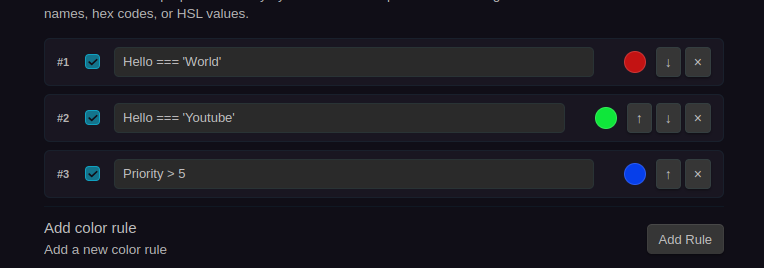
Color rules allow you to apply conditional colors to nodes based on their frontmatter properties. This creates visual categories in your graph, making it easy to identify different types of notes at a glance.

How Color Rules Work

Color rules use JavaScript expressions to evaluate each node's frontmatter. The first rule that evaluates to true determines the node's color.

Rule Evaluation

  1. Load frontmatter - Get the node's frontmatter properties
  2. Evaluate rules in order - Check each rule from top to bottom
  3. First match wins - Apply color from first rule that returns true
  4. Default color - Use default if no rules match

Expression Context

Inside expressions, you have direct access to frontmatter properties by name:

// If frontmatter is:
// ---
// status: complete
// priority: high
// tags: [project, important]
// ---

// You can write:
status === 'complete' // true
priority === 'high' // true
tags.includes('project') // true

Creating Color Rules

Access Settings

  1. Open Settings (Ctrl/Cmd+,)
  2. Navigate to Nexus Properties
  3. Scroll to Node colors section
  4. Click Add Rule

Rule Components

Each rule consists of:

Expression (Required)

  • JavaScript expression that returns boolean
  • Access properties directly by name
  • Must be valid JavaScript syntax

Color (Required)

  • Any valid CSS color
  • Hex: #3b82f6
  • HSL: hsl(200, 70%, 50%)
  • Named: steelblue, red, green

Enabled (Toggle)

  • Turn rules on/off without deleting
  • Useful for temporary rule changes

Order (↑/↓ buttons)

  • Rules are evaluated top to bottom
  • First matching rule wins
  • Reorder with up/down buttons

Example Color Rules

Simple Status Colors

ExpressionColorDescription
status === 'complete'#22c55e (green)Completed items
status === 'in-progress'#f59e0b (orange)Active work
status === 'pending'#ef4444 (red)Not started

Result: Nodes change color based on their status property.

Type-Based Colors

ExpressionColorDescription
type === 'project'#3b82f6 (blue)Projects
type === 'task'#10b981 (green)Tasks
type === 'note'#6366f1 (purple)Notes
type === 'reference'#8b5cf6 (violet)References

Result: Different node types get distinct colors.

Priority System

ExpressionColorDescription
priority === 'urgent'#dc2626 (dark red)Urgent items
priority === 'high'#f59e0b (orange)High priority
priority === 'medium'#eab308 (yellow)Medium priority
priority === 'low'#6b7280 (gray)Low priority

Result: Visual priority hierarchy.

Tag-Based Colors

ExpressionColorDescription
Array.isArray(tags) && tags.includes('important')#ef4444 (red)Important notes
Array.isArray(tags) && tags.includes('archived')#9ca3af (gray)Archived
Array.isArray(tags) && tags.includes('public')#10b981 (green)Public notes

Result: Nodes colored by tags.

Complex Conditions

ExpressionColorDescription
status === 'complete' && priority === 'high'#059669 (dark green)Completed high-priority
status === 'pending' && priority === 'urgent'#dc2626 (dark red)Urgent not started
type === 'project' && Array.isArray(tags) && tags.includes('active')#2563eb (bright blue)Active projects

Result: Multi-condition colors.

Expression Syntax

Accessing Properties

Simple properties:

status === 'active'
priority === 'high'
type === 'project'

Numeric properties:

progress > 50
count <= 10
score >= 75

Boolean properties:

completed === true
archived !== true
isPublic

Array properties:

Array.isArray(tags)
tags.includes('important')
tags.length > 3

Nested properties (objects):

metadata && metadata.category === 'work'
author && author.name === 'John'

Operators

Comparison:

  • === - Exact equality
  • !== - Not equal
  • > - Greater than
  • < - Less than
  • >= - Greater than or equal
  • <= - Less than or equal

Logical:

  • && - AND (both must be true)
  • || - OR (either can be true)
  • ! - NOT (invert boolean)

String methods:

title.includes('Project')
title.startsWith('DRAFT')
title.endsWith('.png')
title.toLowerCase() === 'important'

Array methods:

tags.includes('work')
tags.some(t => t.startsWith('priority-'))
tags.every(t => t !== 'archived')

Rule Order & Priority

Rules are evaluated top to bottom. The first rule that matches determines the color.

Example Rule Order

Rules defined (top to bottom):

  1. status === 'urgent' → Red
  2. status === 'complete' → Green
  3. status !== '' → Blue

Results:

  • Note with status: urgent → Red (matches rule 1, stops)
  • Note with status: complete → Green (skips rule 1, matches rule 2)
  • Note with status: pending → Blue (skips rules 1-2, matches rule 3)
  • Note with no status → Default color (no rules match)

Reordering Rules

Use the and buttons to change rule order:

Before reordering:

  1. General rule (broad match)
  2. Specific rule (narrow match)

Problem: Specific rule never triggers because general rule always matches first.

After reordering:

  1. Specific rule (narrow match)
  2. General rule (broad match)

Solution: Specific rule now has priority.

Best Practice

Place more specific rules above more general rules to ensure they're evaluated first.

Default Node Color

If no color rules match, nodes use the default node color.

Setting Default Color

  1. Settings → Nexus Properties → Node colors
  2. Find "Default node color"
  3. Click the color picker
  4. Choose your default color

Default: #e9f2ff (light blue)

Recommendations:

  • Use a neutral color
  • Ensure good contrast with text
  • Consider your theme (light vs. dark mode)

Enabling/Disabling Rules

Toggle rules on/off without deleting them:

  1. Find the rule in settings
  2. Click the checkbox on the left
  3. Unchecked = disabled (rule is skipped)
  4. Checked = enabled (rule is evaluated)

Use cases:

  • Temporarily disable a rule for testing
  • Switch between different color schemes
  • Debug rule conflicts

Deleting Rules

To permanently remove a rule:

  1. Find the rule in settings
  2. Click the × button on the right
  3. Rule is immediately deleted
No Undo

Deleting a rule is permanent. Consider disabling it instead if you might want it back.

Common Patterns

GTD Status System

// ✅ Next Actions
status === 'next' // → Green #22c55e

// 🔶 Waiting
status === 'waiting' // → Orange #f59e0b

// 🟦 Someday/Maybe
status === 'someday' // → Blue #3b82f6

// ⚪ Completed
status === 'done' // → Gray #9ca3af

Project Lifecycle

// Planning phase
phase === 'planning' // → Yellow #eab308

// Active development
phase === 'active' // → Green #10b981

// Under review
phase === 'review' // → Orange #f59e0b

// Completed
phase === 'complete' // → Blue #3b82f6

// Archived
phase === 'archived' // → Gray #6b7280

Knowledge Maturity

// Seedling (new idea)
maturity === 'seedling' // → Light green #86efac

// Budding (developing)
maturity === 'budding' // → Green #22c55e

// Evergreen (mature)
maturity === 'evergreen' // → Dark green #15803d

Confidence Levels

// High confidence
confidence === 'high' // → Green #22c55e

// Medium confidence
confidence === 'medium' // → Yellow #eab308

// Low confidence
confidence === 'low' // → Orange #f59e0b

// Needs verification
confidence === 'verify' // → Red #ef4444

Troubleshooting

Rule Not Working

Check expression syntax:

  • Must be valid JavaScript
  • Property names are case-sensitive
  • Strings need quotes: 'active' not active
  • Use === not = for comparison

Check property exists:

  • Open the node in Obsidian
  • Verify frontmatter spelling
  • Check for typos
  • Use tooltips to see actual properties

Check rule order:

  • Earlier rules take precedence
  • A broader rule might match before yours
  • Reorder rules with ↑/↓ buttons

Check rule is enabled:

  • Look for the checkbox on the left
  • Disabled rules are skipped

Wrong Color Applied

Multiple rules matching:

  • First matching rule wins
  • Check rule order
  • Make rules more specific

Property value mismatch:

  • Check actual property value in frontmatter
  • Case sensitivity matters
  • Extra spaces can break matches
  • Use trim(): status.trim() === 'active'

Expression Error

Common errors:

// ❌ Wrong: Missing quotes
status === active

// ✅ Correct
status === 'active'

// ❌ Wrong: Using = instead of ===
status = 'active'

// ✅ Correct
status === 'active'

// ❌ Wrong: Forgetting Array.isArray check
tags.includes('work')

// ✅ Correct
Array.isArray(tags) && tags.includes('work')

Check console:

  • Open developer console (Ctrl/Cmd+Shift+I)
  • Look for error messages
  • Invalid expressions are logged

Colors Not Updating

  • Try toggling view mode
  • Refresh the graph
  • Check that properties changed in frontmatter
  • Rules are re-evaluated on file changes

Performance Considerations

  • Number of rules: Up to 50 rules should perform well
  • Expression complexity: Simple comparisons are faster
  • Evaluation frequency: Rules run on every graph update

Optimization tips:

  • Keep expressions simple
  • Disable unused rules
  • Put most common rules first
  • Avoid complex computations

Tips & Best Practices

  1. Use consistent property names across your vault
  2. Start with broad categories (type, status) before specific ones
  3. Use a color scheme that makes sense for your workflow
  4. Test rules on a few notes before applying vault-wide
  5. Document your color system in a note for reference
  6. Use muted colors to avoid eye strain
  7. Consider accessibility (colorblind-friendly palettes)

Next Steps