Context Menus

Context menus provide quick access to common actions when you right-click nodes or edges in the relationship graph. They offer a faster way to perform tasks without opening the command palette or navigating to settings.

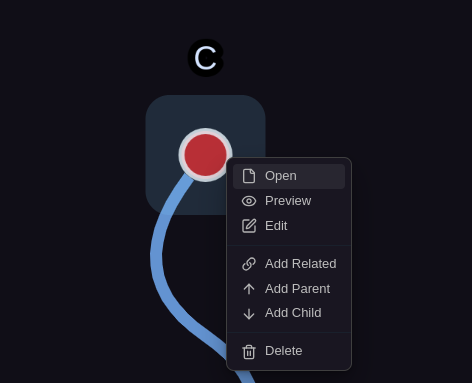
Node Context Menu

Right-click any node in the graph to open the node context menu.

Open File

Action: Opens the file in the current tab

When to use:

  • Quick access to edit the note
  • Jump to the file from graph
  • Replace current tab content

Open in New Tab

Action: Opens the file in a new tab

When to use:

  • Keep current tab open
  • Compare multiple notes side-by-side
  • Reference while working on another file

Tip: You can also double-click a node to open in new tab

Add Parent

Action: Opens relationship adder to select a parent for this node

What happens:

  1. Relationship adder mode activates
  2. Status bar shows "Select parent for [node name]"
  3. Click another node to make it the parent
  4. Bidirectional relationship is created automatically

Requirements:

  • Target parent must be a valid file
  • No circular relationships (node can't be its own ancestor)

Learn more about bidirectional sync →

Add Child

Action: Opens relationship adder to select a child for this node

What happens:

  1. Relationship adder mode activates
  2. Status bar shows "Select child for [node name]"
  3. Click another node to make it a child
  4. Bidirectional relationship is created automatically

Requirements:

  • Target child must be a valid file
  • No circular relationships (node can't be its own descendant)

Action: Opens relationship adder to select a related node

What happens:

  1. Relationship adder mode activates
  2. Status bar shows "Select related for [node name]"
  3. Click another node to mark as related
  4. Bidirectional relationship is created automatically

Requirements:

  • Target must be a valid file
  • Doesn't create relationship if already related

Edit Node

Action: Opens a modal to edit the node's frontmatter properties

Features:

  • Edit all frontmatter properties
  • Add new properties
  • Remove existing properties
  • Save changes directly to file

When to use:

  • Quick property updates
  • Add missing metadata
  • Fix incorrect values
  • Bulk property editing
Not Implemented Yet

This feature may be available in a future update. Currently, open the file to edit frontmatter.

View Node Preview

Action: Opens a read-only preview modal of the note

Shows:

  • Frontmatter section
  • Note content (markdown rendered)
  • Scrollable for long content

When to use:

  • Quick reference without opening file
  • Preview before opening
  • Check content without disrupting workflow

Alternative: Use Zoom Mode for inline preview

Copy Node Path

Action: Copies the full file path to clipboard

Format: folder/subfolder/filename.md

When to use:

  • Share file location
  • Create links in other apps
  • Reference in scripts or automation
  • Documentation purposes

Tip: Paste into Obsidian to create a wiki link

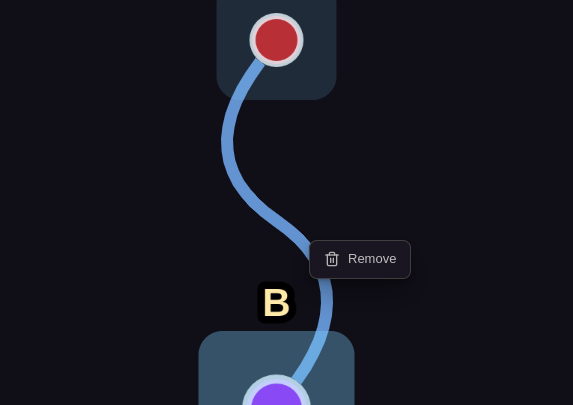
Edge Context Menu

Right-click any edge (line between nodes) to open the edge context menu.

Remove Relationship

Action: Removes the relationship between the two connected nodes

What happens:

  1. Relationship is removed from both nodes' frontmatter
  2. Edge disappears from graph
  3. Nodes remain (not deleted)
  4. Bidirectional sync maintains consistency

Use cases:

  • Clean up incorrect relationships
  • Remove outdated connections
  • Restructure hierarchies
  • Declutter related networks

Confirmation: May require confirmation to prevent accidental deletion

Action: Focuses on the source node of the edge

When to use:

  • Follow relationship backward
  • Understand where connection originates
  • Navigate through network

Action: Focuses on the target node of the edge

When to use:

  • Follow relationship forward
  • See where connection leads
  • Explore relationships

Relationship Adder

The relationship adder is activated when you choose "Add Parent", "Add Child", or "Add Related" from the context menu.

How It Works

  1. Right-click source node and choose relationship type
  2. Status bar shows "Select [type] for [node name]"
  3. Click target node to create relationship
  4. Relationship created bidirectionally
  5. Mode deactivates automatically

Visual Feedback

While relationship adder is active:

  • Status bar message shows current mode
  • Cursor may change to indicate selection mode
  • Source node remains highlighted

Canceling

To cancel relationship selection:

  • Press Escape
  • Right-click anywhere
  • Click outside graph
  • Use command "Cancel Relationship Selection" (if available)

Validation

The relationship adder prevents invalid relationships:

Blocked:

  • Circular relationships (node → itself)
  • Parent-child loops (A parent of B, B parent of A)
  • Duplicate relationships (already exists)

Allowed:

  • Multiple children for one parent
  • Multiple related connections
  • Cross-constellation relationships

Quick Actions

Common workflows using context menus:

Restructure Hierarchy

  1. Right-click child node → "Add Parent"
  2. Click new parent node
  3. Old parent relationship removed (if exclusive)
  4. New parent relationship created
  1. Right-click first concept → "Add Related"
  2. Click second concept
  3. Both marked as related bidirectionally

Clean Up Network

  1. Right-click edge → "Remove Relationship"
  2. Confirm removal
  3. Edge removed, nodes stay

Quick Preview

  1. Right-click node → "View Node Preview"
  2. Read content in modal
  3. Close modal to return to graph

Copy for Reference

  1. Right-click node → "Copy Node Path"
  2. Paste into another note or app
  3. Create link or reference

Keyboard Modifiers

Some actions may support keyboard modifiers:

Shift + Click: Open in new tab (alternative to context menu) Ctrl/Cmd + Click: Add to selection (multi-select, future feature) Alt + Click: Pin node position (future feature)

Future Features

Some modifier actions are planned for future releases.

Use Cases

Project Reorganization

Scenario: Moving tasks between projects

  1. View project hierarchy
  2. Right-click task → "Add Parent"
  3. Click new project
  4. Task moved to new project

Benefit: Visual restructuring without editing files

Building Knowledge Network

Scenario: Connecting related concepts

  1. View concept in "Related" mode
  2. Right-click concept → "Add Related"
  3. Click another concept
  4. Repeat to build network

Benefit: Rapid network construction

Relationship Cleanup

Scenario: Removing outdated links

  1. View old project
  2. Right-click edges → "Remove Relationship"
  3. Clean up obsolete connections

Benefit: Maintain graph hygiene

Quick Navigation

Scenario: Exploring connections

  1. Right-click node → "View Node Preview"
  2. Check if it's relevant
  3. If yes: "Open in New Tab"
  4. If no: Close and try another

Benefit: Fast exploration without disrupting main view

Troubleshooting

Context Menu Not Appearing

Check right-click:

  • Ensure right mouse button (not left)
  • Try different node/edge
  • Check mouse is over node/edge

Check not in selection mode:

  • If in relationship adder mode, cancel first
  • Try pressing Escape then right-clicking

Check node is valid:

  • Deleted nodes may not have menu
  • Refresh graph if needed

Action Not Working

Check file permissions:

  • File must be writable
  • Check file not locked by another app

Check valid target:

  • Parent/child/related must be valid files
  • No circular relationships
  • Target must exist

Check plugin enabled:

  • Verify Nexus Properties is active
  • Restart Obsidian if needed

Relationship Not Created

Check bidirectional sync:

  • Both files should update
  • Check frontmatter of both files
  • Run rescan if needed

Check circular validation:

  • System prevents circular relationships
  • Choose different target

Check file in indexed directory:

Tips & Best Practices

  1. Use context menus for quick actions - Faster than commands
  2. Preview before opening - Save time by checking first
  3. Right-click edges to manage relationships directly
  4. Copy paths for documentation or sharing
  5. Build networks visually with Add Related
  6. Restructure hierarchies with Add Parent/Child
  7. Clean up regularly by removing old relationships

Accessibility

Keyboard access:

  • Context menu triggered by right-click only
  • No keyboard alternative currently
  • Use commands for keyboard-only access

Screen readers:

  • Menu items should be announced
  • Actions may not fully describe results
  • Use commands for better screen reader support

Next Steps